

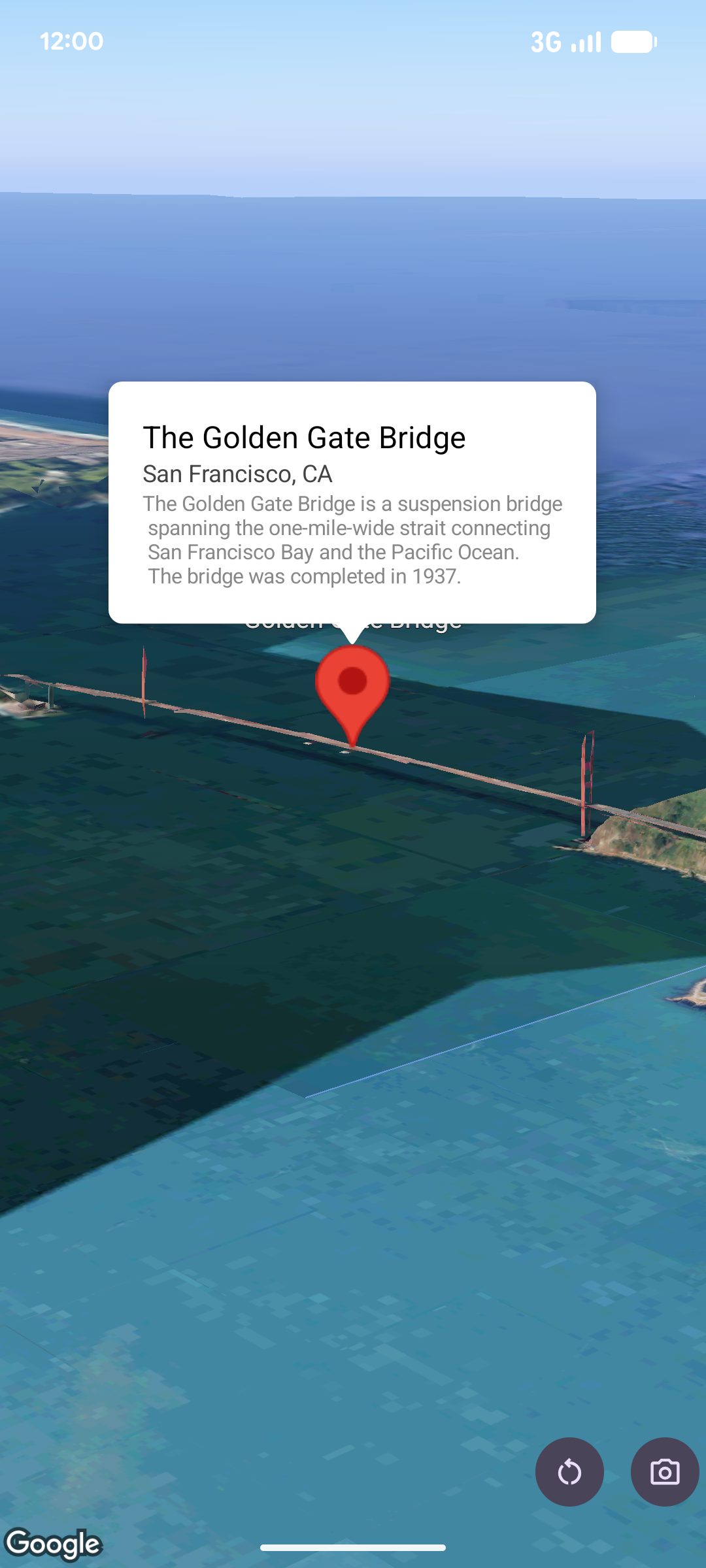
A popover displays content (usually text or images) in an info bubble window above the map, at a given location. The popover has a content area and a tapered stem. The tip of the stem is attached to a specified location on the map.
Typically you will attach a popover to a marker
, but you can also
attach a popover to a specific LatLng
coordinate.
Add a popover
To add a popover, create a Popover
object and set its options, including
position and altitude mode. The position is a LatLng
object which includes
latitude, longitude, and altitude which determines where the popover is
displayed. If anchoring to a marker, the marker's position is used instead.
You can also control how altitude is interpreted by setting the altitude mode.
The content of a popover must be contained within an AndroidView . Popovers are scrollable by default, and have a predefined maximum height.
Anchor a popover to a marker
You can anchor popovers to markers. When adding a popover anchored to a marker,
you need to associate the popover with a Marker
object.
  class

 MapManager
 (
 private

 val

 map
 :

 MapView
 )

 {

 /**
 * Adds a popover anchored to a marker.
 * @param context The Context required to instantiate UI views.
 */

 fun

 addPopoverToMarker
 (
 context
 :

 Context
 )

 {

 // 1. Create a marker

 val

 markerOptions

 =

 markerOptions

 {

 position

 =

 latLngAltitude

 {

 latitude

 =

 37.422

 longitude

 =

 -
 122.084

 altitude

 =

 0.0

 }

 }

 val

 marker

 =

 map
 .
 addMarker
 (
 markerOptions
 )

 ?:

 return

 // 2. Create the custom view using the passed-in context

 val

 textView

 =

 TextView
 (
 context
 ).
 apply

 {

 text

 =

 context
 .
 getString
 (
 R
 .
 string
 .
 popover_hello
 )

 setPadding
 (
 16
 ,

 16
 ,

 16
 ,

 16
 )

 setBackgroundColor
 (
 Color
 .
 WHITE
 )

 setTextColor
 (
 Color
 .
 BLACK
 )

 }

 // 3. Configure and display the popover

 val

 options

 =

 popoverOptions

 {

 content

 =

 textView

 positionAnchor

 =

 marker

 altitudeMode

 =

 AltitudeMode
 .
 RELATIVE_TO_GROUND

 }

 val

 popover

 =

 map
 .
 addPopover
 (
 options
 )

 popover
 .
 show
 ()

 }
 }
Add a configured popover
The following sample adds a popover that automatically closes when the user taps outside of the popover, and doesn't automatically pan to newly opened popovers:
  /**
 * Adds a configured popover (auto-close enabled, auto-pan disabled).
 * @param context The Context used to inflate the UI and retrieve string resources.
 */
 fun

 addConfiguredPopover
 (
 context
 :

 Context
 )

 {

 // 1. Initialize the view with the explicit context

 val

 textView

 =

 TextView
 (
 context
 ).
 apply

 {

 text

 =

 context
 .
 getString
 (
 com
 .
 example
 .
 snippets
 .
 common
 .
 R
 .
 string
 .
 popover_info
 )

 setPadding
 (
 12
 ,

 12
 ,

 12
 ,

 12
 )

 setBackgroundColor
 (
 Color
 .
 WHITE
 )

 setTextColor
 (
 Color
 .
 BLACK
 )

 }

 // 2. Configure popover behavior

 val

 options

 =

 popoverOptions

 {

 content

 =

 textView

 // Setting a fixed coordinate anchor

 positionAnchor

 =

 latLngAltitude

 {

 latitude

 =

 0.0

 longitude

 =

 0.0

 altitude

 =

 0.0

 }

 autoCloseEnabled

 =

 true

 // Closes automatically when the map is tapped elsewhere

 autoPanEnabled

 =

 false

 // Map camera remains stationary when popover appears

 }

 // 3. Add to the map instance

 map
 .
 addPopover
 (
 options
 )
 }
