
This document shows you how to resolve issues with accessing Gemini Code Assist features.
Depending on the Google Cloud project and organization settings that your administrator configured, you might need to take additional steps to access Gemini Code Assist features in the Google Cloud console and supported IDEs , such as enabling required APIs and assigning yourself a Gemini Code Assist Standard or Enterprise license.
No valid license
If you previously used Gemini Code Assist features through Gemini Code Assist for individuals, Google AI Pro, or Google AI Ultra, attempting to do so now results in an error message that indicates you don't have a valid license. This is because access to Gemini Code Assist features through consumer accounts has been deprecated and replaced with the Antigravity family of products. For more information, see the deprecation page .
Access to Gemini Code Assist features is now only available to users with a Gemini Code Assist Standard or Enterprise license.
Disabled Gemini for Google Cloud API
The following error occurs when you are attempting to use a Gemini Code Assist feature, such as a quick prompt in the Google Cloud console or code completion in a supported IDE:
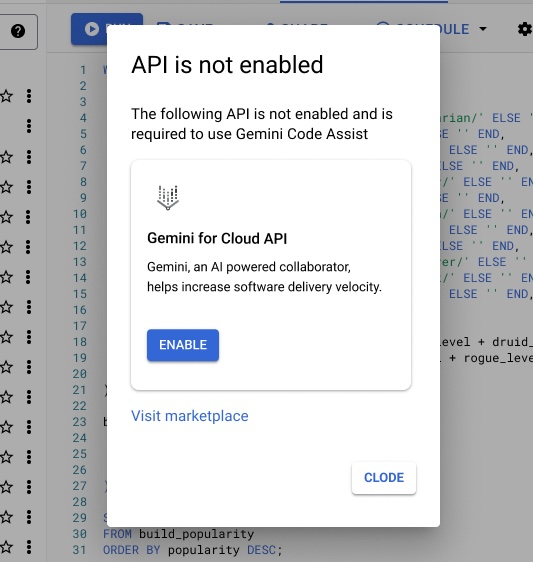
This error occurs if the Gemini for Google Cloud API isn't enabled .
If you have permissions to enable the Gemini for Google Cloud API on a Google Cloud project, then the message provides a link to enable it. If you don't have permissions to enable it, then the message lists the permission you need to enable the API.
Missing permissions
The following error occurs when you are attempting to use a Gemini Code Assist feature, such as a quick prompt in the Google Cloud console or code completion in a supported IDE:
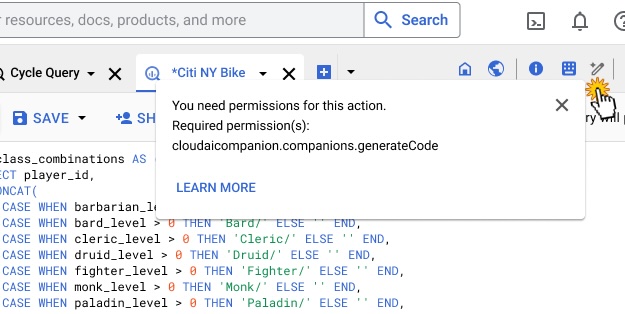
This error occurs if you don't have the required user permission to use a feature .
To resolve this issue, contact your Google Cloud administrator and request them to grant you the missing permission.
Missing Gemini Code Assist Standard or Enterprise license
To use Gemini Code Assist Standard or Enterprise, you need to have a license assigned to you. If the required APIs are enabled on your Google Cloud project and you have the required permissions to use Gemini Code Assist Standard or Enterprise features, but you attempt to use a Gemini Code Assist Standard or Enterprise feature (such as quick prompt in the Google Cloud console or code completion in a supported IDE), the Google Cloud console displays a message explaining that you need to get a Gemini Code Assist Standard or Enterprise license.
If you don't have permissions to self-assign a license or manage licenses, then you are provided a link to learn more about Gemini Code Assist Standard and Enterprise licensing. You will need to request a license from your Google Cloud project administrator.
License self-assignment for Google Cloud console-based Gemini Code Assist features
If you have permissions to self-assign licenses and a license is available in your organization, then you'll see a dialog in the Google Cloud console where you click Get a licenseto have one assigned to you. Clicking that button assigns a license to you, and it remains assigned until a period of inactivity elapses. After that period of inactivity, your license is unassigned and returned to the pool of available licenses.
If you have permissions to manage licenses , then you'll see a dialog where you click Manage subscriptionmanually or automatically assign a license.
