

Page Summary
-
Learn two methods to set a homepage in Google Issue Tracker: one using the left-hand navigation and another through the Settings menu.
-
By default, your homepage in Issue Tracker is set to display issues that are open and assigned to you.
-
You can set various types of pages as your homepage, such as a hotlist, saved search, or bookmark group, but not a specific issue.
This page explains how to set a homepage in Google Issue Tracker. By default, when you open Issue Tracker it displays a list of issues that are open and assigned to you.
Set a homepage
To set a homepage in the left-hand navigation:
-
Open Issue Tracker in your web browser.
-
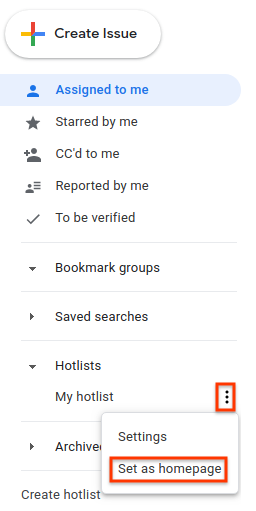
In the left-hand navigation, find the link you want to set as the homepage.
-
Hover over the link. This will highlight it in gray and cause a "more" icon to appear.
-
Click the more icon, and choose Set as homepagefrom the drop-down list.
Set a homepage in the Settings menu
To set a homepage in the Settingsmenu:
-
Click the gear icon in the upper right corner of the Issue Tracker UI.

-
Select Settings.
-
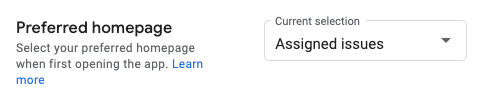
In the Preferred homepagesection of the Settings overlay, use the drop-down list to choose what type of page you would like to set as your homepage. By default, Assigned to meis set as your homepage.
-
If you choose Hotlist, Saved search, or Bookmark group, a second drop-down appears. Use this second drop-down to choose the specific item you would like to set as your homepage.
