
Skip to content
new ogbongeblog logo
  • Advertise
  • Blog
  • Contact

How To Display Author Profile and Picture Below Posts Of Blogger Mobile View

  1. Home
  2. Blog
  3. Uncategorized
  4. How To Display Author Profile and Picture Below Posts Of Blogger Mobile View
September 3, 2015

Written by

jidetheblogger Avatar
jidetheblogger

Last Modified :

October 8, 2017

By enabling the “show author profile below posts” option on your Blogger blog, the name, Google+ profile picture and a small description of the author of your posts will be displayed below the posts.

Once you enable the feature, it will only display on the desktop view of your blog and not on the mobile view. Nevertheless, you can make it to display on the mobile view of your blog with a little modification to your blog’s template.

Enabling it on the mobile view of your blog, will definitely contribute to the increase in Google+  and followers of your blog authors.
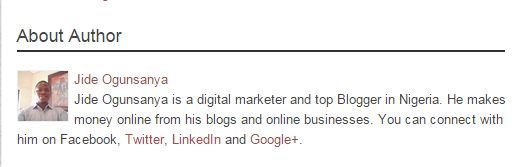
about jide ogunsanya googleplus

How To Get Started

==> Ensure it’s already displaying on the desktop view. If not, read the guide here .==> Log in to your Blogger dashboard
==> Back up your template and go to “Template” > “Edit HTML”

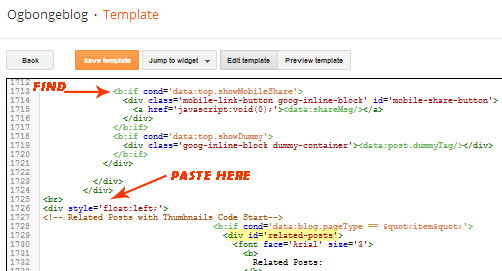
==> Click inside the HTML and use CTRL F to find <b:if cond=’data:top.showMobileShare’>

==> Carefully find the ending </div> as seen in the screenshot below:
relatedposts widget mobile

==> There are three ending </div> as seen in the screenshot above==> Directly below the third one, copy and paste the code below:

<p style=”font-size: 18px; border-bottom: 2px solid #333;”>About Author</p>
<b:if cond=’data:post.authorAboutMe’>
        <div class=’author-profile’ itemprop=’author’ itemscope=’itemscope’ itemtype=’http://schema.org/Person’>
          <b:if cond=’data:post.authorPhoto.url’>
            <img expr:src=’data:post.authorPhoto.url’ itemprop=’image’ width=’50px’/>
          </b:if>
          <div>
            <a class=’g-profile’ expr:href=’data:post.authorProfileUrl’ itemprop=’url’ rel=’author’ title=’author profile’>
              <span itemprop=’name’><data:post.author/></span>
            </a>
          </div>
          <span itemprop=’description’><data:post.authorAboutMe/></span>
        </div>
      </b:if>


==> Save your template.

Check out the posts on the mobile view of your Blogger blog and you should notice the Author box been displayed below the posts.

I hope this works for you.

NB : I can fix this for you FREE if you’re one of those that have purchased my blog template. Buy my template here .

Please Share :
blogger mobile template tips blogger tips

Like What You Read?

Sign Up to get similar articles delivered to your email inbox.

Leave a Reply Cancel reply

Your email address will not be published. Required fields are marked *

8 responses to “How To Display Author Profile and Picture Below Posts Of Blogger Mobile View”

  1. Jj Avatar
    Jj
    September 3, 2015

    Nice one boss. Will give it a try

    Loading…
    Reply
  2. Sadiq Muhammad Avatar
    Sadiq Muhammad
    September 5, 2015

    Nice tutorial boss you rock

    Loading…
    Reply
  3. David Akinwale Avatar
    David Akinwale
    October 20, 2015

    how did you add facebook, twitter etc link to your profile

    Loading…
    Reply
  4. japhet hezron Avatar
    japhet hezron
    July 26, 2016

    Wow, it worked for me. Thank you so much. But how can i hide it from home page?

    Loading…
    Reply
  5. Tecmobs Avatar
    Tecmobs
    July 30, 2016

    Thanks very much sir, your tutorial was very helpful

    Loading…
    Reply
  6. Otti Chukwudi Avatar
    Otti Chukwudi
    May 12, 2017

    you are the best, you got the most beautiful heart, thanks for the great information…God bless you.

    Loading…
    Reply
  7. Jeston Avatar
    Jeston
    March 30, 2018

    Thank you so much it is working pretty well. I am having trouble trying to figure out with the codes in Blogger.com and without any lack searching for answers from the internet, my hopes decreased until suddenly your site showed up on google search after tweaking search queries. Btw, I am from Philippines.

    Loading…
    Reply
  8. Joseph ngorka Avatar
    Joseph ngorka
    August 9, 2019

    Thanks this was helpful

    Loading…
    Reply

WANT TO ADVERTISE?

Chat on WhatsApp

RELATED POSTS

  • Show Author Profile Below Posts In Blogger Blog Without Editing HTMLBlogger author profile box
  • How To Show Any Gadget on Blogger Mobile Template
  • Blogger About Me Widget With Follow ButtonGoogle+ profile badge

FEATURED


  • How to Pay Chinese Suppliers in RMB (Alipay & WeChat Pay) or Swap Naira, Kenyan Shillings, Ghana Cedis & USDT in Minutes

    How to Pay Chinese Suppliers in RMB (Alipay & WeChat Pay) or Swap Naira, Kenyan Shillings, Ghana Cedis & USDT in Minutes

JOIN AI WEB DESIGN GROUP


  • AI Website Design Training Whatsapp Group by Jidetheblogger

    AI Website Design Training Whatsapp Group by Jidetheblogger

RANDOM POSTS


    I Got One Free Month of Meta Verified After I Tried to Cancel My Subscription


    How To Make Money On Bamboo App: 5 Proven Ways


    How To Use Vibe Coding To Make Money


    How I Earn $100 Per Referral from Affiliate Marketing


    Bluetooth Printer That Connects To Phone


    Can I Use OPay Card for Facebook Ads?


    Why I Moved My Websites From Namecheap To Interserver.net


    How I Earn $50 Per Sale


MORE RANDOM POSTS
← How To Change Footer Links Color of Blogger Awesome Template
Innjoo Unveils Fire Plus and Halo Smartphones In Nigeria →

Join 25,000+ subscribers

Receive our latest blog posts in your inbox.

Search

Social

Facebook

Instagram

Twitter

new ogbongeblog logo

Copyright © 2026 | About | Advertise | Featured | Sitemap | Privacy Policy | Powered by WordPress

Your cart (items: 0)

Products in cart

Product
Details
Total
Subtotal ₦0.00
Shipping and discounts calculated at checkout.
View cart
Go to checkout

Your shopping cart is empty

Return to shop

Notifications

%d

    LIKE My Fan Page

    Privacy Policy | Copyright © 2012,OgbongeBlog.All Rights Reserved. Powered by Blogger .
    Create a Mobile Site
    View Site in Mobile | Classic
    Share by: