


UPDATE: There is now a simpler way of creating Navigation Bar for bloggers blogs with which you can create tabs linking to labels or external links. Check out the tutorial here .
If you add the PAGES gadget to your Blogger blog and create some PAGES
, the title
of the PAGES will automatically be used for your Navigation tabs. This makes it somehow difficult for some bloggers to link the Navigation tabs to external links, Labels etc. In this tutorial, I am explaining how I created the navigation tabs on my blog which point to my post pages
, labels
and even external links
.
NOTE
: I am using one of the Blogger’s new default templates (designer templates), though I modified it to my taste. Hence, no guarantee
that this trick will work for you if your template is NOT compatible with Blogger’s Template Designer . You can give it a try though, but make sure you back up your template
.
How Do I Know If my Template is Compatible with Template Designer?
Login to your blog, go to Design , click on “ Temple Designer “
Then, click on “ Advanced ” to see if you can edit the Template. If you can, it means it is compatible. If not compatible, Blogger will tell you it is not.
So, What Next?
Go to Design , click on “ Page Elements “.
Directly under your “ Header “, you should see “Add a Gadget”.
If you already have the PAGES gadget there, feel free to remove it. Click “Edit”, then Remove.
Now, click on the “Add a Gadget” as seen in the picture below.
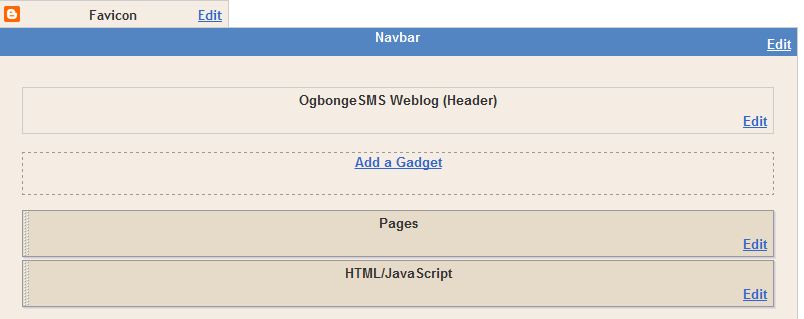
From the list of gadgets that will pop-up, choose the “ HTML/Javascript ” gadget.
Copy and Paste the code below in it.
<ul class=’menu’>
<li class=’page_item’><a expr:href=’data:blog.homepageurl’ title=’home’>Home</a></li>
<li><a href=’https://www.ogbongeblog.com/p/advertise-here.html’>Advertise</a></li>
<li><a href=’http://www.ogbongesms.com’>Send
BulkSMS</a></li>
<li><a href=’https://www.ogbongeblog.com/2010/06/unlock-3g-modemunlock-mtn.html’>Unlock Modems</a></li>
<li><a href=’https://www.ogbongeblog.com/search/label/making%20money’>Make Money</a></li>
</ul>
Click on SAVE and view your blog.
If you can see the tabs, this means it’s working fine for your blog.
WAIT ….you still need to edit the code above to point to your desired links. So, let me break down the code for you one by one.
The First link: <li class=’page_item’><a expr:href=’ data:blog.homepageurl ‘ title=’home’>Home</a></li> points to the HOME page of your blog. You do not need to edit this.
The Second link : <li><a href=’ https://www.ogbongeblog.com/p/advertise-here.html ‘>Advertise</a></li> links to a PAGE . ( not POST). You can edit this to point to a PAGE you might have created.
The Third
link: <li><a href=’ http://www.ogbongesms.com
‘>Send
BulkSMS</a></li> points to an external link
. You can edit this to point to an external website or external web page.
The Fourth
link: <li><a href=’ https://www.ogbongeblog.com/2010/06/unlock-3g-modemunlock-mtn.html
‘>Unlock Modems</a></li>
<li> points to a POST page
. You can edit this to point directly to one of your blog posts.
The Fifth link: <li><a href=’ https://www.ogbongeblog.com/search/label/making%20money ‘>Make Money</a></li> points to a LABEL . If you do add LABELS (categories) to your posts, you can easily edit this to point to one of your labels.
Remember, if you visit a LABEL’s link, it will display the POSTS that has be categorized under the LABEL.
If you do not know how to get your LABELS link, provided you have already added the LABELS gadget to your blog, just right-click on one of the labels/categories and choose “ Copy Link Location “. Paste it in a Notepad and use it wherever you want.
That’s all.
I believe you can now use your creativity to link the tabs to wherever you want.
If you are still having troubles getting this done or just need some more help. kindly make use of the comment form below.
In my future posts, I will share with you more tricks I implemented to make my blog look the way it is right now.








Leave a Reply