
Skip to content
new ogbongeblog logo
  • Advertise
  • Blog
  • Contact

Want To Add Facebook Recommendation Bar To Blogger/Blogspot Blog?

September 10, 2012

·

Uncategorized
jidetheblogger Avatar
jidetheblogger

While reading articles on some blogs, you might have noticed a Facebook recommendation bar docked to the lower right (or left) of the screen which expands as you scroll down the page or after you might have finished reading the blog post . This Facebook social plugin was designed to show you a social recommendation of the next article to read on such blogs.

If you add the Facebook recommendation bar to your blog, it will boost your traffic, by allowing you to gain more pageviews, though the bar will only display your blog posts that are previously liked or shared on Facebook. It features the “Like ” button and can display up to 5 recommended posts but default is 2. Below is a screenshot of the FB recommendation bar:

Fb recommendation bar

So, How Do I Add Facebook Recommendation Bar to Blogger Blog?

You will need to create a Facebook application so as to get your appID which will be needed to make the bar work on your blog. If you already have your appID, probably after reading my tutorial on adding the Facebook comment form to your blog , you can just go to step 2 .

STEP 1

==> Visit Facebook Apps SetUp page

==> A small windows will pop out. Type anything you like in the “ App Name ” field. Make sure it says valid
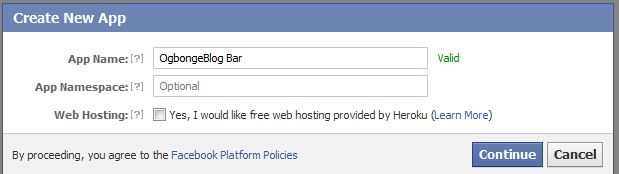

FB Bar


==> Click the “ Continue ” button

==> You will be prompted to enter a captcha code. Enter it in the space provided and click on submit

==> A new page will be displayed. Click Website with Facebook Login tab and inside the box, enter your blog URL with an ending slash . See the screenshot below
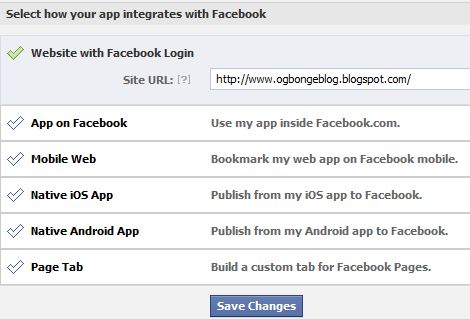
FB bar2

Do not touch remaining options and click Save Changes .

==> You will also see two strings of alpha-numerical characters on the page. One is App ID and the other is App secret . Just copy the App ID code and keep it save in a notepad. We will need it later

STEP 2

==> Log in to Blogger.com

==> Go to Design → Edit HTML (In Old Blogger Interface) or Click on Blog Title → Template → Edit HTML (in New Blogger Interface)

==> Tick the “ Expand Widgets Templates ” box and Use CTRL F to find  </body>

==> Add the code below directly above  </body>

<div id=’fb-root’/>
<script>
//Facebook Recommendation bar tutorial by Ogbongeblog.com
//<![CDATA[
(function(d, s, id) {
  var js, fjs = d.getElementsByTagName(s)[0];
  if (d.getElementById(id)) return;
  js = d.createElement(s); js.id = id;
  js.src = “//connect.facebook.net/en_US/all.js#xfbml=1&appId= xxxxxxxxxxxxxxx “;
  fjs.parentNode.insertBefore(js, fjs);
}(document, ‘script’, ‘facebook-jssdk’));
//]]>
</script>

==> Replace xxxxxx with your appID copied in Step1 ( Important )

==> Click on Save Template

STEP 3

==> Still in “ Edit HTML ” with “Expand Widgets Templates” box ticked , Use CTRL F to find  </head>

==> Copy and paste the code below directly above </head>

<b:if cond=’data:blog.pageType == &quot;item&quot;’>
<meta content=’article’ property=’og:type’/>
<meta expr:content=’data:blog.title’ property=’og:site_name’/>
<meta expr:content=’data:blog.pageName’ property=’og:title’/>
<b:if cond=’data:blog.postImageThumbnailUrl’>
<meta expr:content=’data:blog.postImageThumbnailUrl’ property=’og:image’/>
</b:if>
<b:else/>
<meta expr:content=’data:blog.title’ property=’og:title’/>
<meta content=’website’ property=’og:type’/>
</b:if>


<meta expr:content=’&quot;en_US&quot;’ property=’og:locale’/>
<meta expr:content=’data:blog.canonicalUrl’ property=’og:url’/>

==> Click on Save Template

STEP 4

==> Still in “Edit HTML” with “Expand Widgets Templates” box ticked, Use CTRL F to find  <data:post.body/>

==> Copy the code below directly after <data:post.body/>

<b:if cond=’data:blog.pageType == &quot;item&quot;’>
<div class=’fb-recommendations-bar’ data-action=’like’ data-num-recommendations=’ 2 ‘ data-read-time=’30’ data-side=’right’ data-trigger=’onvisible’ expr:data-href=’data:post.url’ expr:data-site=’data:blog.homepageUrl’/>
</b:if>

==> Click on Save Template

That’s all.

View your blog posts and you should see the Facebook recommendation bar as you scroll down the page.

NOTE

==> You can change the number of recommended posts in the code above though maximum is 5. You can check out the official Facebook recommendation bar page for more info on how to customize the bar.

I hope this helps.

If you have contributions or questions to ask, kindly make use of the comment form below.

Cheers!

Please Share :
blogger tips facebook

Like What You Read?

Sign Up to get similar articles delivered to your email inbox.

Leave a Reply Cancel reply

Your email address will not be published. Required fields are marked *

16 responses to “Want To Add Facebook Recommendation Bar To Blogger/Blogspot Blog?”

  1. Anonymous Avatar
    Anonymous
    September 10, 2012

    I have noticed it on yuor blog few days back but don't know its called recommendation bar. Will try it on my blog later when I am on my computer. thanks for sharing.

    Loading…
    Reply
  2. infonaija247 Avatar
    infonaija247
    September 10, 2012

    Nice one bro. I will do it today

    http://www.infonaija247.blogspot.com

    Loading…
    Reply
  3. ahmed Onawale Avatar
    ahmed Onawale
    September 10, 2012

    worked partially, after some seconds it displays this "Object Invalid Value: Object at URL ' http://www.techsentral.com/2012/08/blogging-on-blackberry-apps-and-tools.html&#39 ; of type 'article' is invalid because the given value '' for property 'og:image:url' could not be parsed as type 'url'." and it only displays only two of my post on everytime

    Loading…
    Reply
    1. Jide Oguns Avatar
      Jide Oguns
      September 11, 2012

      STEP 3 should fix the error bro if you follow the instruction carefully. In the code above, I highlighted "2" and stated clearly that you can change the number to maximum of 5. So, change it to any number you want if the 2 is not OK for you.

      Loading…
      Reply
  4. Soki Briggs Avatar
    Soki Briggs
    September 13, 2012

    I added this to my New Blog last month only because it was directly from Facebook (Not all these Heavily scripted ones others use)And since i've successfully deferred parsing of JavaScript till Page load is complete, it ads no additional load time.

    Plus Bounce rate below 50%Nice addon i tell you

    Loading…
    Reply
    1. Jide Oguns Avatar
      Jide Oguns
      September 15, 2012

      Yes, it's a nice add-on. Makes alot of sense.

      Loading…
      Reply
  5. Tsquare Avatar
    Tsquare
    September 13, 2012

    Nice review here, keep it up and will like to follow ur blog.

    Loading…
    Reply
  6. Godwin Odey Avatar
    Godwin Odey
    September 14, 2012

    uncopyable, the code above is not copyable

    Loading…
    Reply
    1. Jide Oguns Avatar
      Jide Oguns
      September 15, 2012

      I have disabled the script that prevented you from copying it. You can retry now bro.

      Loading…
      Reply
  7. Anonymous Avatar
    Anonymous
    September 15, 2012

    Jide, the codes are not copyable. after highlighting and copying, it shows a different thing when pasted regarding content source.

    Loading…
    Reply
    1. Jide Oguns Avatar
      Jide Oguns
      September 15, 2012

      Yes, I added the script to my blog because of those that copy my content without linking back. I have disabled the script so you can easily copy the code above. Retry and am sure you will be able to copy it now

      Loading…
      Reply
  8. Anonymous Avatar
    Anonymous
    September 15, 2012

    cool

    Loading…
    Reply
  9. Anonymous Avatar
    Anonymous
    October 4, 2012

    Thank you Jide. Just did it and it worked well. Just that the post title always starts with my blog title, therefore they don't show all of the post title. God bless you richly!

    Loading…
    Reply
  10. vanesa eze Avatar
    vanesa eze
    July 16, 2013

    it dint work ooooooo

    Loading…
    Reply
  11. George Emmanuel Avatar
    George Emmanuel
    August 2, 2013

    Hello jide, i have tried it and it did not work on my blog, i am using travel template. pls wat should i do.

    Loading…
    Reply
  12. Jitendra Raulo Avatar
    Jitendra Raulo
    January 17, 2018

    Thanks for sharing it

    Loading…
    Reply

WANT TO ADVERTISE?

Chat on WhatsApp

RELATED POSTS

  • How To Add Facebook Recommendation Button To Blogger Blog
  • How to add Floating Share Bar to right side of blogger blogs
  • Add Facebook Send Button plus Like Button to Blogspot Blogs

FEATURED


  • CREDICORP launches C.L.I.C.K.D. Scheme with FG’s 3MTT Programme, expanding affordable consumer credit for locally-assembled laptops and devices for digital workers

    CREDICORP launches C.L.I.C.K.D. Scheme with FG’s 3MTT Programme, expanding affordable consumer credit for locally-assembled laptops and devices for digital workers

  • What Happens to Your Online Accounts When You Die?

    What Happens to Your Online Accounts When You Die?

JOIN AI WEB DESIGN GROUP


  • AI Website Design Training Whatsapp Group by Jidetheblogger

    AI Website Design Training Whatsapp Group by Jidetheblogger

← PostCron: Alternative to Ping.fm and Seesmic that Allows You Schedule Posts to Facebook Profile, Pages and Twitter
“Innocence of Muslims” Video on YouTube →

Join 25,000+ subscribers

Receive our latest blog posts in your inbox.

Search

Social

Facebook

Instagram

Twitter

new ogbongeblog logo

Copyright © 2026 | About | Advertise | Featured | Sitemap | Privacy Policy | Powered by WordPress

Your cart (items: 0)

Products in cart

Product
Details
Total
Subtotal ₦0.00
Shipping and discounts calculated at checkout.
View my cart
Go to checkout

Your cart is currently empty!

Start shopping

Notifications

%d

    LIKE My Fan Page

    Privacy Policy | Copyright © 2012,OgbongeBlog.All Rights Reserved. Powered by Blogger .
    Create a Mobile Site
    View Site in Mobile | Classic
    Share by:


