
Skip to content
new ogbongeblog logo
  • Advertise
  • Blog
  • Contact

Floating Sharing Bar for Blogger Blogs

March 24, 2014

·

Uncategorized
jidetheblogger Avatar
jidetheblogger
You might have seen some blogs with a vertical floating share bar widget where Facebook like, Tweet, Google+ buttons are present on the left or right side of the blogs. Adding this floating sharing bar to your blog will make it easy for your blog visitors to Like, reTweet, +1 and share your posts, which will help in increasing your blog traffic .

Though I’ve explained how to add the sharing bar when I published how to add Facebook Share & Like buttons, Digg and Tweet Button to the side of blogger/blogspot blogs , I’ve recoded a better one which I decided to share with you. I have replaced “Facebook Like button” with the new Facebook Share button and removed Digg and SU buttons.

More so, since displaying too many social media counters could affect the speed at which your blog loads, I’ve added a AddThis share button which provide your visitors with over 300+ social sharing options all in one place.

Below is a screenshot:
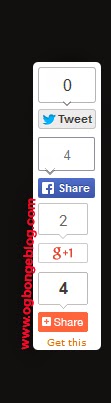
share_bar

So, How Do I add the Floating Share bar to my Blogger/blogspot blog?

Adding the Vertical Floating Bar to a Blogger blog is very easy.

All you have to do is to ensure you’ve added the  Facebook JavaScript SDK  to your blog. Thereafter, you will be required to copy a snippet of code,and drop it into a HTML/JavaScript gadget.

If you’ve not added the Facebook JavaScript SDK to your blogger blog, read how to add it  here .

Once you confirmed that the Facebook JavaScript SDK has been added to your blog’s html, proceed with the steps below:

  • Log in to your Blogger account.
  • Go to Layout
  • Click “ Add A Gadget “
  • In Add A Gadget window, select HTML/Javascript
  • Copy the code highlighted below and paste it inside the HTML/Javascript box
<!– floating page sharers Start Share This With Friends–>
<style>
#pageshare {position:fixed; bottom:15%; right:10px; float:left; border-radius:5px;-moz-border-radius:5px;-webkit-border-radius:5px;background-color:#fff;padding:0 0 2px 0;z-index:10;}
#pageshare .sbutton {float:left;clear:both;margin:5px 5px 0 5px;}
.fb_share_count_top {width:48px !important;}
.fb_share_count_top, .fb_share_count_inner {-moz-border-radius:3px;-webkit-border-radius:3px;}
.FBConnectButton_Small, .FBConnectButton_RTL_Small {width:49px !important; -moz-border-radius:3px;-webkit-border-radius:3px;}
.FBConnectButton_Small .FBConnectButton_Text {padding:2px 2px 3px !important;-moz-border-radius:3px;-webkit-border-radius:3px;font-size:8px;}
</style>
<div id=’pageshare’ title=”Share This With Your Friends”>
<div class=’sbutton’ id=’rt’>
<a href=”http://twitter.com/share” class=”twitter-share-button” data-count=”vertical” >Tweet</a>
<script src=’http://platform.twitter.com/widgets.js’ type=”text/javascript”></script>
</div>
<div class=’sbutton’ id=’gb’>
<div class=”fb-like”data-layout=”box_count” data-action=”like” data-size=”small” data-show-faces=”false” data-share=”true”> </div>
</div>
<div class=’sbutton’ id=’gplusone’>
<g:plusone size=”tall”></g:plusone>
</div>
<div class=’sbutton’ id=’at’>
<a class=”addthis_counter”></a>
<script type=”text/javascript” src=”//s7.addthis.com/js/300/addthis_widget.js”></script>
</div>
<div style=”clear: both;font-size: 9px;text-align:center;”> <a href=”https://www.ogbongeblog.com/2013/04/floating-sharing-bar-for-blogger-blogs.html” rel=”nofollow”>Get this</a></div>
</div>
<!– floating page sharers End –>

Save the gadget and click “ Save arrangement ” button on the upper right corner.

View your blog and I hope it works for you.

Please Share :
blogger tips widgets

Like What You Read?

Sign Up to get similar articles delivered to your email inbox.

Leave a Reply Cancel reply

Your email address will not be published. Required fields are marked *

18 responses to “Floating Sharing Bar for Blogger Blogs”

  1. Andrew Avatar
    Andrew
    June 8, 2013

    Thanks for sharing this, Jide. I've just added the addthis share button widget. It looks quite good and very inviting.

    Loading…
    Reply
  2. Blevopedia Avatar
    Blevopedia
    July 27, 2013

    Cool and thanks for the tips.

    Loading…
    Reply
  3. Ekene Ilochonwu Avatar
    Ekene Ilochonwu
    April 4, 2014

    thanks a lot bro… i just added it to my blog as well.

    Loading…
    Reply
  4. charles Emmanuel Avatar
    charles Emmanuel
    October 18, 2014

    thanks jide for your inspiration. what do you think about my new blog? i want the widget to be in the left side what should i do?

    Loading…
    Reply
  5. Tolulope Lawson Avatar
    Tolulope Lawson
    October 30, 2014

    tanks

    Loading…
    Reply
  6. Christina typearls Avatar
    Christina typearls
    December 8, 2014

    Thanks , ve added this to my blog, http://www.typearls.org . .My readers actually love this too and they can share posts

    Loading…
    Reply
  7. brainytech Avatar
    brainytech
    February 12, 2015

    An expert you are bro. i just stated my blog this year. Thanks it works @ http://www.brainytech360.blogspot.com

    Loading…
    Reply
  8. malik adisa Avatar
    malik adisa
    November 3, 2015

    this is great i am really happy with i hope to to add it to my yet to be launched blog.thanks in advance

    Loading…
    Reply
  9. Emmaunel Akor Avatar
    Emmaunel Akor
    December 6, 2015

    Thanks for this coed working fine

    Loading…
    Reply
  10. Saminu Abass Avatar
    Saminu Abass
    February 8, 2016

    Great article to help me on http://www.saminuabass.blogspot.com

    Loading…
    Reply
  11. JustPorsh Avatar
    JustPorsh
    June 22, 2016

    Please how to I get this to show on the Mobile version?

    Loading…
    Reply
    1. Jide Oguns Avatar
      Jide Oguns
      February 19, 2017

      I don't recommend such because it won't fit well on the small screen of mobile phones. Anyway, you can search the blog for tutorial on how to make a widget display on mobile view. You only have to add mobile='yes' to the widget's code.

      Loading…
      Reply
  12. Babawale Toheeb Avatar
    Babawale Toheeb
    April 2, 2017

    Thank you sir it work for me too.

    Loading…
    Reply
  13. Lawrence Ifeanyi Avatar
    Lawrence Ifeanyi
    April 5, 2017

    Great post. i am currently using it on my blog http://www.festoempire.com

    Loading…
    Reply
  14. James Okpanachi Avatar
    James Okpanachi
    April 25, 2017

    Thank you so much. You do put up a lot of free stuffs on your blog, it really helps coming up bloggers as myself. God Bless Jide.

    Loading…
    Reply
  15. Stanley Avatar
    Stanley
    July 22, 2017

    Thanks it worked. You can check it out here

    https://naijatruevoice.blogspot.com.ng/

    Loading…
    Reply
  16. Samuel Avatar
    Samuel
    October 24, 2017

    How is the floating sharing bar implemented on WordPress blog. I want to put on http://www.TechMatas.com .

    Loading…
    Reply
  17. Ritesh Kushwaha Avatar
    Ritesh Kushwaha
    October 29, 2018

    Thank You So much This Article Is very Helpful For me

    Loading…
    Reply

WANT TO ADVERTISE?

Chat on WhatsApp

RELATED POSTS

  • How to add Facebook Share & Like buttons, Digg and Tweet Button to the side of blogger/blogspot blogs
  • How to add Floating Share Bar to right side of blogger blogs
  • 17 Ways of Promoting Blogger Blogs for FREE Traffic

FEATURED


  • CREDICORP launches C.L.I.C.K.D. Scheme with FG’s 3MTT Programme, expanding affordable consumer credit for locally-assembled laptops and devices for digital workers

    CREDICORP launches C.L.I.C.K.D. Scheme with FG’s 3MTT Programme, expanding affordable consumer credit for locally-assembled laptops and devices for digital workers

  • What Happens to Your Online Accounts When You Die?

    What Happens to Your Online Accounts When You Die?

JOIN AI WEB DESIGN GROUP


  • AI Website Design Training Whatsapp Group by Jidetheblogger

    AI Website Design Training Whatsapp Group by Jidetheblogger

← 2 GMail Apps that Would Make Your Life Better and Improve Your Productivity
Generate APK Files Online Without Chrome APK Downloader Plugin →

Join 25,000+ subscribers

Receive our latest blog posts in your inbox.

Search

Social

Facebook

Instagram

Twitter

new ogbongeblog logo

Copyright © 2026 | About | Advertise | Featured | Sitemap | Privacy Policy | Powered by WordPress

Your cart (items: 0)

Products in cart

Product
Details
Total
Subtotal ₦0.00
Shipping and discounts calculated at checkout.
View my cart
Go to checkout

Your cart is currently empty!

Start shopping

Notifications

%d

    LIKE My Fan Page

    Privacy Policy | Copyright © 2012,OgbongeBlog.All Rights Reserved. Powered by Blogger .
    Create a Mobile Site
    View Site in Mobile | Classic
    Share by:


