


Digital Resources for Families
WSES Instructional Technology
- School Based Technology Specialist
Get support with FCPS technology
Learn more about the technology in FCPS
WSES Mustang Memo (News You Choose)
Parents can subscribe to the weekly Mustang Memo to get weekly email updates. Parents can also subscribe to FCPS This Week, Advanced Academic Programs, Career and Technical Education, Parent Resource Center, Special Education, and much more.
Sign up for WSES/FCPS emails or change your subscription preferences
ParentVUE
Your SIS ParentVUE account provides access to view your child’s student information, including attendance, report cards, discipline, health, and school information. You can also update your child’s Emergency Care Information.
- To activate ParentVUE for the first time, you will need the activation key that you received in a letter from FCPS. FCPS mails this information to parents new to FCPS or whose activation key has expired. Please email MariaPaz Garcia at @email if your activation key expired or you are having issues logging onto your Parent Vue Account. Please include your name, email address, student's name, students ID number and a short description of what the issue is.
- Navigate to the activation page and follow the on-screen instructions.
- How to Create an Account Video
Amharic | Arabic | Chinese | English | Farsi | Korean | Spanish | Urdu | Vietnamese - Keep an eye on your email (check your spam folder) for the confirmation link.
- You can log in to ParentVUE at any time after creating your account at sisparent.fcps.edu or by downloading the ParentVUE Mobile App .
- How to Navigate Your Account Videos
Arabic | Chinese | English | Farsi | Korean | Spanish | Urdu | Vietnamese
Schoology
Schoology is the learning management system that has been used division-wide since summer 2021. It is a learning space that supports instructional practices aligned to FCPS’ learning model and helps students reach the Portrait of a Graduate goals .
You will use your ParentVUE username and password to log into Schoology . Watch these FCPS videos on how to navigate Schoology .
Note: You will not be able to view any Google assignments on your parent account, even if you switch to student view. This is because parents/guardians do not have fcpsschools.net Google accounts. You can have your student use their Schoology account to share their assignments with you.
Accessing Benchmark in Schoology
- Use your student's ID number as their Username. Each student should know their own password - sometimes teachers keep a list depending on grade level.
- When the login screen comes up on a Chromebook or ChromeFlexOS device, enter the student's ID number. On the next screen enter the ID number and password.
- Look for the desktop icon that says "Schoology". It's a white circle with a blue circle and a black S inside. Double-click to open it. How can I get there without the icon?
- Log in again using the same username and password that you used in step 2.
- On the top menu, choose "COURSES".
- Click on the course titled "Homeroom". Your child's teacher may house Benchmark in the Language Arts course. If this is the case, you will click the Language Arts course.

- On the left-hand menu, Benchmark should be near the bottom of the list. Click on Benchmark.

- Click "All Assignments" on the screen that pops up.

- Click the test name you want to view (pictured here is Unit 2 Assessment for 5th grade).

- Click the blue book icon to open the test.
- Click the "Question" dropdown to view all the questions. There is a symbol guide at the bottom of the dropdown. Total points earned can be viewed in the upper right-hand corner.

Accessing Performance Matters Assessment Reports
If your child's teacher has made test results available in the portal, this is how to access them. Please contact your child's teacher if you are expecting test results and do not see them.
- Use your student's ID number as their Username. Each student should know their own password - sometimes teachers keep a list depending on grade level.
- When the login screen comes up on a Chromebook or ChromeFlexOS device, enter the ID number. On the next screen enter the ID number and password. On the final login screen, enter the password.
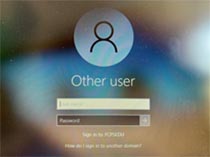
- Look for the desktop icon that says "Schoology". It's a white circle with a blue circle and a black S inside. Double-click to open it. How can I get there without the icon?
- Log in again using the same username and password that you used in step 2.
- Click the "waffle" icon and select Performance Matters.

- There may be active tests listed. If not, the blue Student Portalbutton will be in the middle of the screen. Otherwise, select your initial in the upper right-hand corner and then click Student Portal.

- Select Common Test Resultsfrom the mid-page tabs.

- Find the test you want to review and select Test Reviewunderneath it. If you click the plus sign instead, you will see how you performed on each standard.
Logging In to Schoology (Parents/Guardians)
- Make sure you have registered for a ParentVUE account.
- Parents should call or email the Student Information Assistant in the main office ( 703-714-6400 ) to request a letter with an activation code be sent home.
- Then, parents can follow these steps to set up the ParentVUE account.
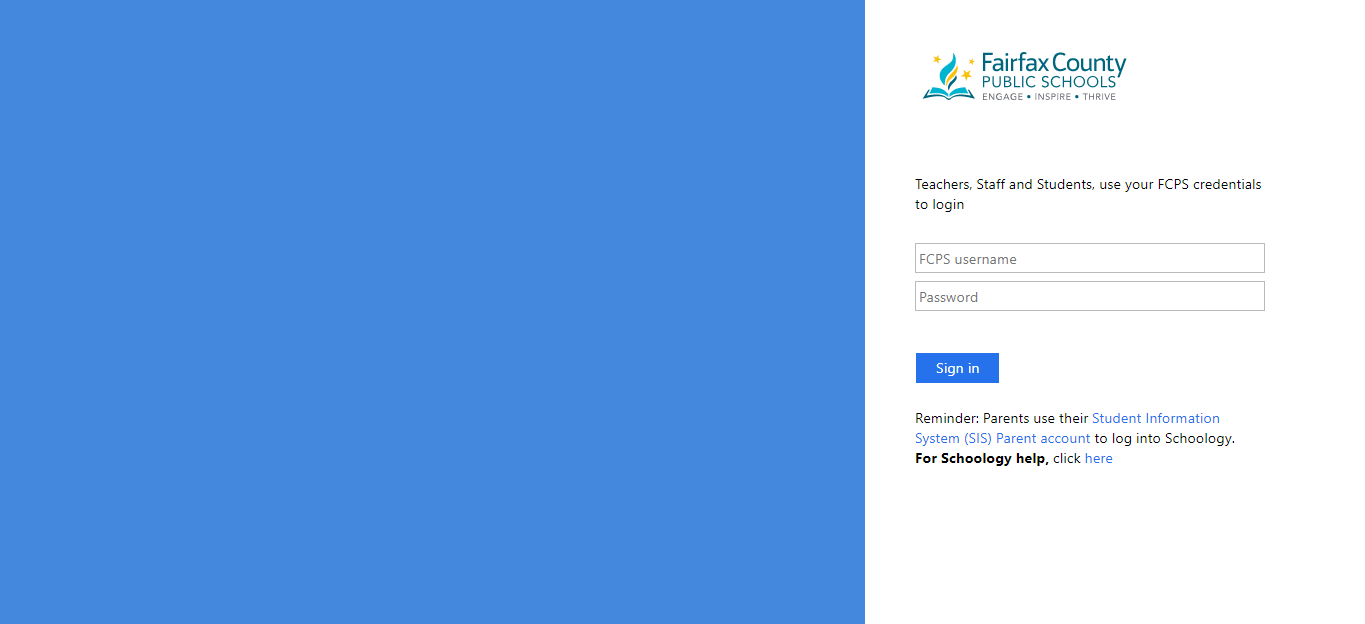
- Visit lms.fcps.edu
(or click the Schoology button on the top of this page).
- Then, use the same username and password that you set up for your ParentVUE account. See these directions as a video .
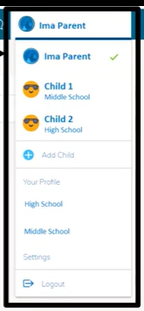
- Look for your name in the upper right-hand corner. Click the drop-down arrow to see your student name(s). Click on whichever you'd like to see that account - a green checkmark will appear next to the account you are viewing.
- You will know you are viewing your child's account because a light blue bar will appear at the top of your screen. The below picture is parent vs student views.
- On your parent account, you will be able to view the All Parents: Lemon Road course, view student activity, student submissions, and upcoming or overdue assignments.

Find out more about Schoology in FCPS
ST Math, Lexia, and more at home
Students have access to a variety of digital learning tools during the school day, including:
- Lexia Core5and Lexia PowerUpare research-based programs that provide equitable access to structured literacy for all Elementary students. Lexia is used with all students in grades K-6.
- ST Mathis a visual and game-based math program that teaches conceptual understanding by first having students solve problems visually before introducing symbols. It is used with all students in grades K-6.
- Summit K12offers online, interactive content to help our multilingual learners practice and build listening, reading, writing, and speaking skills.
- Exact Pathis an adaptive online program that supports reading and math for students in grades K–12, will be available for select FCPS students
If you are using a personal device, these directions can get you set up to connect your child to learning just like they are in school.
Step 1: Set up Google Chrome
Open Google Chrome. Chrome is the preferred browser for Google Workspace for Education. Learn more about other supported browsers .
We highly recommend using a separate Chrome profile for your child's FCPS Google account to avoid having multiple Google accounts logged in at the same time.
Step 2: Connect Chrome to your child's FCPS Google account
-
Click this link for Google Workspace
-
Enter your username(your student ID number) into the box (leave the @fcpsschools.net). Click Next

-
Enter your password into the box. Click Next

Congratulations! You can now log in with Google on many WSES student links, whenever you see this button
Step 3: Sign in to Clever
-
Navigate to Clever at https://clever.com/in/fairfax/ (and then we recommend you bookmark this page).
-
Press the Log in with Google button

Step 4: Click on the icon of the learning app you want to use


- Students now access MyON ebooks through the Renaissance icon

MySchoolBucks
Online payment for student fees and school store items are available through the MySchoolBucks School Store. This online payment service provides a quick and easy way to pay for school-related purchases. You will be able to pay for a variety of school fees using credit/debit cards or electronic checks.
- Go to www.MySchoolBucks.com or, to the MySchoolBucks link located on your school’s homepage to establish an account
- Add your child using the name of the school they are attending, and either their student ID or birthdate
- You will receive a confirmation email that your account has been established
- Make purchases with your credit/debit card or electronic checks
- There are no convenience fees for using the online payment system
Learn more about Online Payments and Student Fees
Digital Citizenship
Digital citizenship is the responsible use of technology. This includes being responsible with application usage and respecting the devices we use. Sign up to receive tips and tricks on how to discuss digital citizenship with your student.
Choosing Appropriate Digital Content
In Fairfax County, we have a committee that reviews applications. They post the approved applications on our Digital Ecosystem Library .
Many parents worry about the amount of time their children are spending on devices. Time is one consideration, and the content and features of media they’re using are important, too. The steps below will help families discover high-quality media. They will also help parents learn what to look for and discuss with their children before using a new app, game, or service.
Step 1: Make a list of the games, apps, or media your children want to use.
Step 2: Use reviews to learn about the game, app, or media. The following two sites provide information about what is in a game, app, movie, or online service.
- Common Sense Media Reviews help parents find age-appropriate apps, games, movies, music, and TV shows. They also provide information parents need to know.
- Parents' Ultimate Guides help parents understand the apps and websites their children might be using.
- Entertainment Software Ratings Board Reviews provide a rating and what is in the game or app.
- Terms of Service: Didn't Read has bullet points of Terms of Service (TOS). The full TOS and privacy policy can contain age restrictions and should be skimmed.
Step 3: Consider the following questions to help you make a decision
- Can your child communicate with people they don’t know while using the app, game, or service?
- Is the app, game, media, or service age-appropriate and is there questionable content?
- Does the tool or service use location services?
- Can your child buy additional features, also known as in-app purchases?
- Can they publish text, photos, or videos publicly or is there live streaming?
- What information is collected about your child and who can they share it with?
- Who owns the content your child posts or shares?
- Does the app, game, media, or service reflect your family’s values?
Step 4:Decide if your child has the maturity and self-regulation skills to use it in a safe, responsible, and ethical manner?
Step 5:Establish expectations and consequences. Tell your child about any parental controls you plan to use. Be consistent about expectations and consequences.
Parental Controls
FCPS content filters are applied to all FCPS devices. Parents and families who would like to limit access to individual websites at home should consult with their internet service providers to learn about content filter features on their home/personal networks.
Our Digital Citizenship team has compiled a collection of links to media reviews, parental controls, and other information to introduce a new device for your child.
The websites below can be used to learn more about the parental controls offered by the products and services used by your family:
- Comcast / Xfinity
- Cox Communications Parental Controls
- Verizon Smart Family
- Verizon Home Router Parental Controls
- Amazon Kids+
- Apple Families (Macs, iPhones, iPads)
- Google's Family Link - FCPS G Suite accounts can be added to Family Link, however, FCPS cannot provide support for Family Link. For more information, go to the Google Support Site .
- Microsoft Family Group (Windows, Xbox Games and Android Phones)
- Gaming Systems Parental Controls (PlayStation, Nintendo)
Parenting in a Digital Age (Videos by Common Sense Media)
Links to Other Resources
Media Plans and Device Contracts for Home
Customizable Device Contract for Families When your child reaches that important milestone where they get their own personal or school issued computing device, an important step is to talk with your child about expectations for use in your home. Use the suggested guidelines to help make sure that you and your child are on the same page and use the customizable form to outline your agreed-upon expectations.
Family Media Agreement: K-5 When your child begins to use the Internet, it is important to have a conversation about when and how they use it and what they use it for. This Family Media Agreement is one tool you can use to support this conversation.
This FCPS PDF contains advice on how to find a media balance, which can be helpful when writing a device contract with your child.
Arabic
Chinese
Farsi
Korean
Spanish
Urdu
Vietnamese
Find more digital citizenship resources through Fairfax County Public Schools.
Online Tutoring Services
All FCPS students will have access to 24/7, on-demand, online tutoring support services through Varsity Tutors. Tutoring:
- Is available at no cost to families.
- Includes weekly live online classes, on demand 24/7 chat tutoring, essay editing, study resources such as recorded content, practice problems, and diagnostic tests.
- Is available in English and Spanish.
