Technology Support
Aldrin provides technology resources to meet the instructional needs of our students within a digitally rich environment .
FCPS Launches New Parent Technology Help Desk
Need Help in a Language Other Than English?
Parents or guardians who need help in a language other than English should let help desk staff know, and a interpreter will join them on the line. (FCPS also has existing parent information phone lines , available in eight different languages, that can assist with general questions about FCPS.)
FCPS Parent Information Phone Lines are available in eight different languages.
To use the family information phone lines please call:
- Amharic (አማርኛ): 571-423-4957
- Arabic (
 ): 571-423-4952
- Chinese (
 ): 571-423-4953
- Farsi (
 ): 571-423-4954
- Korean (
 ): 571-423-4951
- Spanish (
 ): 571-423-4950
- Urdu (
 ): 571-423-4955
- Vietnamese (
 ): 571-423-4956
- Family Resource Center: 703-204-3941
View professional translations of this page:
Arabic
| Chinese
| Farsi
| Korean
| Spanish
| Urdu
| Vietnamese
Families Tools and Techology
Technology Resources for Families and Caregivers .
Parents can use technology to support their child's learning and educational experience. This support also helps students develop essential digital skills, ensuring they are prepared for future academic and professional success. Additionally, parental involvement ensures safe and responsible use of technology, promoting digital citizenship and online safety.
Technology for New Families | IT Support Portal | Reset Password | Parent Digital Consent | Lightspeed
TalkingPoints
Schoology
Zoom
I need help...
How to Create and Access Parent View - Student Information System (SIS)
VIEW VIDEO FOR ACCESSING PARENT VIEW AND RESOURCES AVAILABLE ONCE YOU HAVE YOUR ACCOUNT
Parents can begin to prepare by ensuring they have a Student Information System (SIS) Parent Account and are able to login to FCPS 24-7 Learning Parent View.
Forgot your password ? To recover a forgotten password or change your password, visit the password management page.
ST Math - Parent Guides
ST Math Parent Guide - Spanish
TECHNICAL ISSUES WITH ST MATH
Contact ST Math support at (888) 491-6603
or [email protected]
Digital Tools Help - Troubleshooting Guides
Clear Cache History/Cookies
Do one of the following:
- From the “Menu” button in the upper-right corner of the Chrome window, choose “More Tools” > “ Clear browsing data…“.
- Press “CTRL” + “Shift” + “ Delete” keys in Windows or Linux, or “Command” + “Shift” + “ Delete” keys on MacOS.
- Select “Menu” > “Settings” > “Advanced” > “ Clear browsing data…”
How to Update Chrome
Link to how to update Chrome ENGLISH
IF you need to login as ADMINISTRATOR - Close ALL Chromewindows -> - Search for Chrome (magnified glass lower left on the toolbar -> Right Click and Runas Administrator -> Log in-> Go to Chrome-> Three dotson the right -> Help-> About GoogleChrome-> it will now start to update and you should see a blue check if updated.
WIFI / internet access needed in my home
What if I do not have internet access in my home? What is being done to support equitable access to the internet for student learning?
Several internet providers have announced that they will make their services available for free for households with K-12 and/or college students who don’t already have internet through the company. Further installation fees may also be waived for new student households. Please contact your local internet provider for additional information.
National PTA has joined several other education groups in calling for the Federal Communications Commission (FCC) to temporarily allow schools to utilize E-Rate program funding to provide Wi-Fi hotspots or devices with Wi-Fi capability to students who lack internet access at home. This action would help ensure that all students can remotely continue their education during the current public health emergency.
The coronavirus pandemic is shining a bright light on the so-called “ homework gap ” experienced by 12 million students in this country. The gap refers to those students who do not have internet access at home and are unable to complete their homework—at a time when over 70% of educators assign schoolwork that requires the internet
WIFI -Setup @ Home
To connect to your WiFi at home:
- Go to the login page.
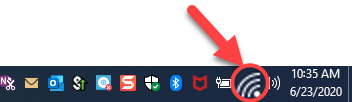
- Look at the bottom right of your computer screen and click internet button
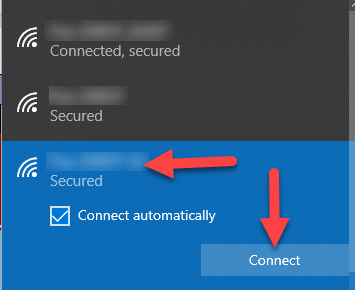
- Find your Wifi. Click connect automatically
- Connect
**You may need to put in the password to your router.
Trouble Shooting Guide
View Guide
- Accessing a website
- Accessing a Google Doc
- Connecting to the Internet
- Remembering my login information
- TECHNOLOGY ONLINE RESOURCES FOR STUDENTS TRANSLATED
Microphone and Camera
Camera and Microphone Setup
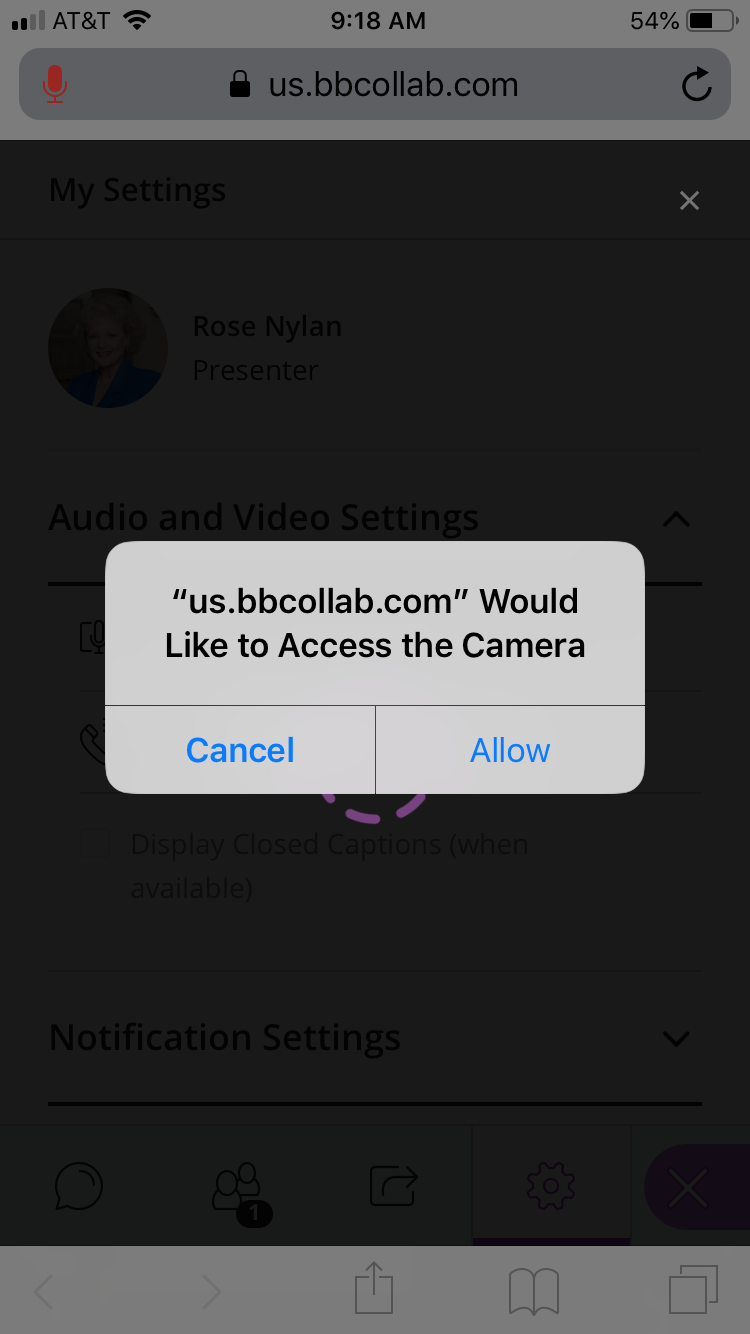 |
Click allow on your phone or tablet | Haga clic en permitir en su teléfono o tableta |
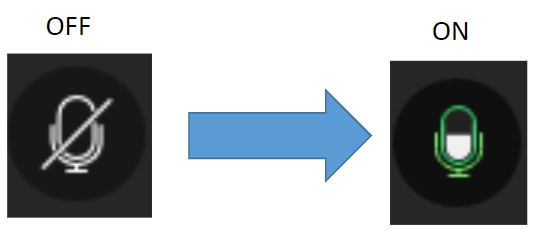 |
Turn your microphone on/off by clicking on the “Microphone” icon. Your microphone should be turned off except when you are called to answer a question by your teacher. |
Encienda / apague su micrófono haciendo clic en el icono "Micrófono". Su micrófono debe estar apagado, excepto cuando Su maestro te llame para responder una pregunta. |
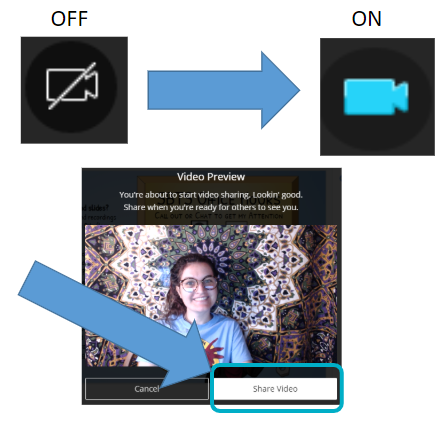 |
Turn your camera on/off by clicking on the “Camera” icon at the bottom of the screen Click Share Video |
. Encienda / apague su cámara haciendo clic en el icono "Cámara" en la parte inferior de la pantalla. Haga clic en Share Video (compartir video) |
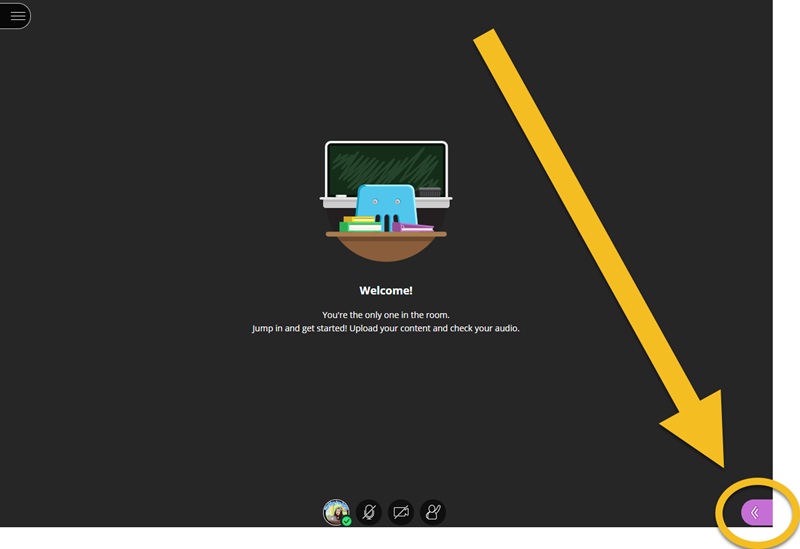 |
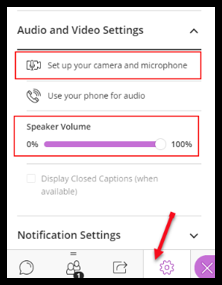
If your camera or audio is not working, check the settings 1. Open the session panel by clicking on the purple and white arrows |
Si su cámara o audio no funciona, verifique la configuración 1. Abra la configuración de la sesión haciendo clic en las flechas moradas y blancas |
 |
2. Click on Settings | 2. Haga clic en configuración |
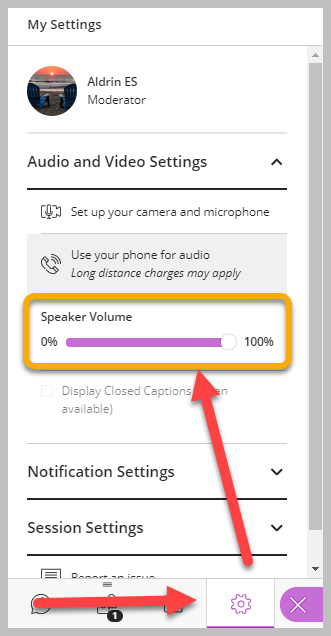 |
3. Check that the volume is turned up | 3. Suba el nivel de volumen |
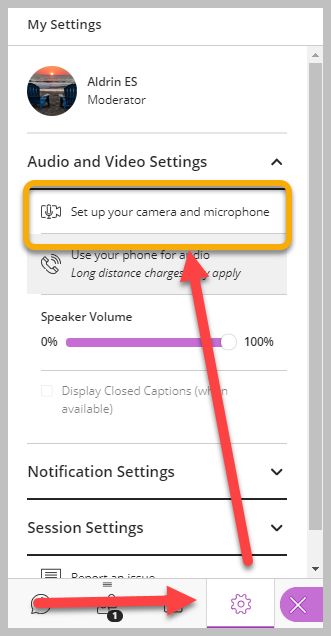 |
4. Click on Set up your camera and microphone Complete the audio and camera tests |
4. Haga clic en Set up your camera and microphone (Configurar su cámara y micrófono) Completa las pruebas de audio y cámara |
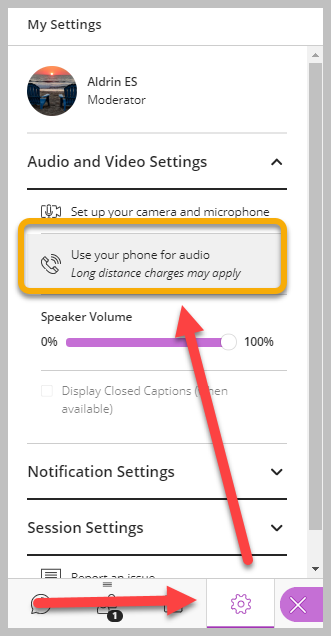 |
If it still isn't working, Click on Use your phone for audio Dial the number listed and type in the PIN when asked |
Si aún no funciona, Haga clic en Use your phone for audio (Usar su teléfono para audio) Marque el número y escriba el PIN cuando se le solicite |
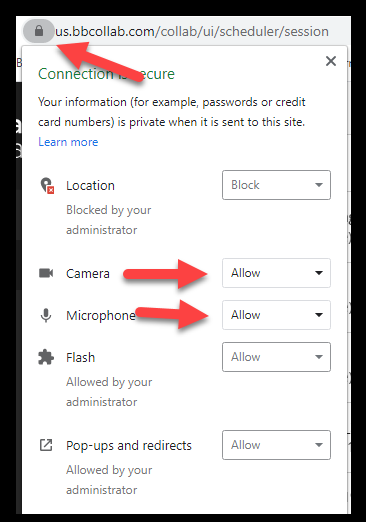 |
Make sure Camera and Micare also Allowedin Chrome |
Camera Test / Camera Issue Fixes
CAMERA TEST (COMPUTER)
| Search CameraApp | 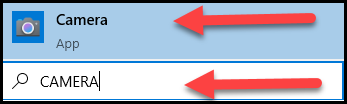 |
| If you don’t see yourself, click the gearin upper left corner to adjust settings. |  |
|---|
CAMERA ISSUE IN (CHROME)
- Open Google Meet or another site using camera and mic
- Look for camera iconin upper right of Chrome window.
- Allowcamera and microphone for https://us.bbcollab.com
- Camera make sure it is your default camera.
- If that does not fix it, click Manage to open settings.
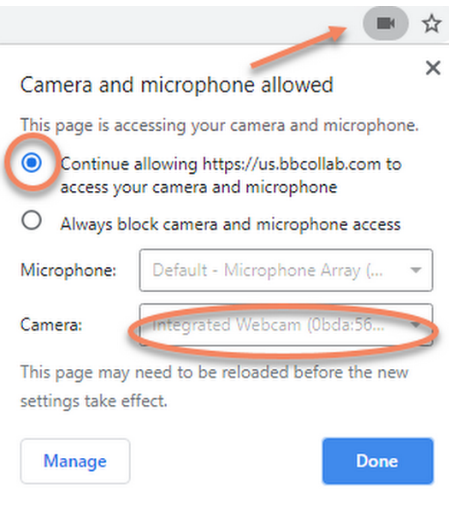
Make sure camera and mic are not blocked in settings.
- In Chrome, click on three dotson the top right.
- Click Settings
- Search camera
- Go to Site Settings
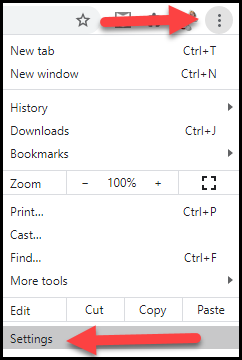
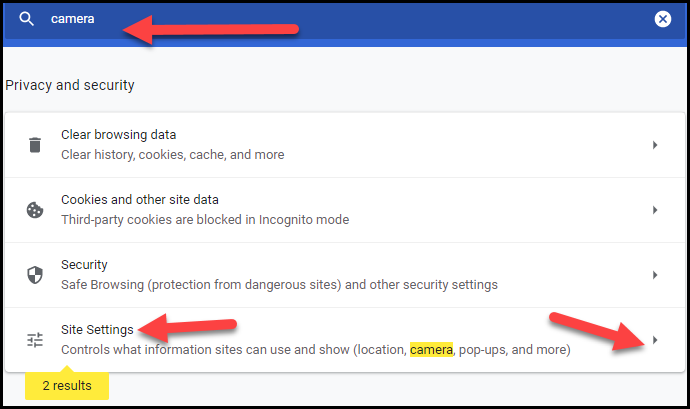
5. Click on chevronnext to application. Example us. Bbcollab.com
6. Make sure Camera and Microphone say Allow
Microphone Test / Microphone Issue Fixes
MICROPHONE MUTED
Press fn key and F4and quickly lift.
This will unmute and mute your mic.
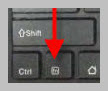
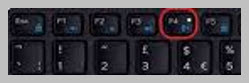
MICROPHONE VOLUME - May be different on each device.
| For louder sound press and hold Fnand then press F3 |
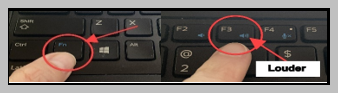 |
| For quieter sound press and hold Fnand then press F2 |
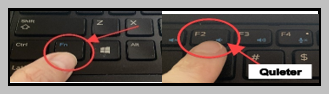 |
|---|
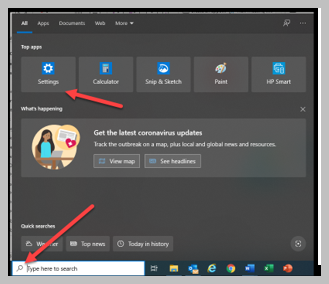
MICROPHONE / CAMERA NOT WORKING (COMPUTER) - Different steps with Window versions.
This may look different depending on which Widows version you are running on your computer
- Click Search Icon
- Click Settings
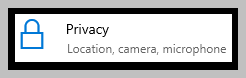
- Click Privacy
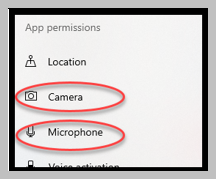
- Scroll to App permissions
- Click Camera and enable
- Click Microphone and enable
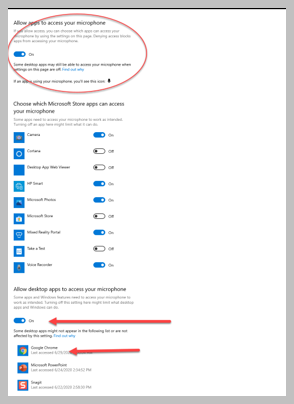
- Make sure to allow desktop app (Chrome is also enabled)
MICROPHONE TEST (COMPUTER)
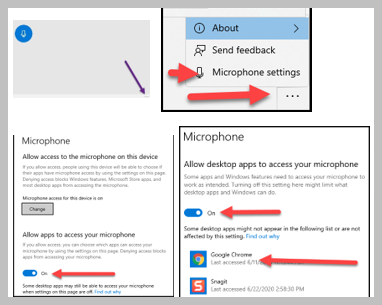
| To test your microphone, SEARCH the Voice Recorderapp on your computer and record a sample. | 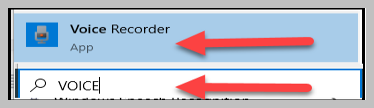 |
| If does not work, choose the three dotsin the lower right corner then microphone settingsand try to adjust settings … Scroll down to Allow apps and desktop apps to access your microphone. Make sure Mic is On for Google Chrome. |
 |
|---|
ALLOW MICROPHONE and CAMERA IN CHROME
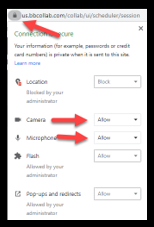
Make sure Camera and Micare also Allowedin Chrome(Image 2) –
LOCKby url -> choose to allowfor mic and camera
SETTING VOLUME AND MICROPHONE & CAMERA SETUP IN BLACKBOARD COLLABORATE ULTRA (BBCU)
Make sure Camera and Micare also Allowedin Chrome(Image 2) – LOCKby url -> choose to allowfor mic and camera