
Digital Resources for Families
Get support with FCPS Technology
Learn more about the technology in FCPS
Sangster News You Choose
Other than regularly visiting our Sangster homepage , parents can subscribe to the Sangster News You Choose to get regular email updates. Parents can also subscribe to FCPS This Week, Advanced Academic Programs, Career and Technical Education, Parent Resource Center, Special Education, and much more.
Sign up for Sangster Elementary, and other FCPS, emails or change your subscription preferences.
ParentVUE
The SIS ParentVUE Account (Student Information System ParentVUE Account) is the FCPS secure solution for accessing information about your child's attendance, demographic data, and link to Schoology. It provides an additional conduit for communication with Sangster Elementary.
- To activate ParentVUE for the first time, you will need the activation key that you received in a letter from FCPS. If you need assistance getting a new or replacement activation key, please contact our SIA, Maribel Sanchez , or the School Based Technology Specialist, Erin Gayzik .
- Navigate to the activation page and follow the on-screen instructions.
- How to Create an Account Video
Amharic | Arabic | Chinese | English | Farsi | Korean | Spanish | Urdu | Vietnamese - Keep an eye on your email (check your spam folder) for the confirmation link.
- You can log in to ParentVUE at any time after creating your account at sisparent.fcps.edu or by downloading the ParentVUE Mobile App .
SIS ParentVUE Account Provides : access to view your child’s student information, including attendance, report cards, class schedules, course history, discipline, health, and school information. You can also update your child’s Emergency Care Information through weCare @ school.
How to Navigate Your Account Videos
Arabic
| Chinese
| English
| Farsi
| Korean
| Spanish
| Urdu
| Vietnamese
Learn how to set up and use your ParentVUE account.
Schoology
Schoology is the learning management system that has been used division-wide since summer 2021. It is a learning space that supports instructional practices aligned to FCPS’ learning model and helps students reach the Portrait of a Graduate goals .
You will use your ParentVUE username and password to log into Schoology . Watch these FCPS videos on how to navigate Schoology .
Accessing Benchmark Assessment Results in Schoology
Directions for Viewing Benchmark Advance Assessments:
-
Have your student login to Schoology. You can find the Schoology link on the Sangster website:
- Go to their Homeroom class (or Language Arts if that is what they use)
- Click on Benchmark Universe.

- Look for Assignments and click on All Assignments
-
Find the assessment you want and click the open button. You will be able to go through the test, see what your child answered, and see the correct answer.

Accessing Performance Matters Assessment Reports
- In your child’sSchoology account, Click the “waffle” icon, and look for the Performance Matterslink. This will not work in your ParentVue account.

- Click Go to Student Portal.

- Click the Common Test Resultstab.

- On tests that you are able to view results, click Test Reviewbutton.

Managing Schoology Notifications
Parent Account Notifications
To check your parent view settings, ensure you are looking at the “parent view” of your account–click the drop-down arrow to the top-right of the Schoology page and make sure there is a green check mark by your name. Then, from the same menu, click Settings.
Navigate to the Notifications tab, where you will find settings for Academic, Group, School, and Personal sections. These are the "blanket" settings for your parent account and will affect all alerts from any of your associated student accounts. Adjust these to your liking, then press the Save Changes button at the bottom of the page.
Logging in to Schoology (Parents/Guardians)
- Make sure you have registered for a ParentVUE account.
- Parents should call or email the Student Information Assistant in the main office to request a letter with an activation code be sent home.
- Then, parents can follow these steps to set up the ParentVUE account.
- Visit lms.fcps.edu
(or click the Schoology button on the top of this page).
- Then, use the same username and password that you set up for your ParentVUE account. See these directions as a video .
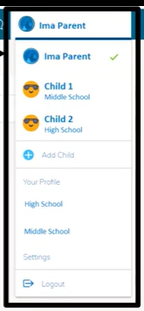
- Look for your name in the upper right-hand corner. Click the drop-down arrow to see your student name(s). Click on whichever you'd like to see that account - a green checkmark will appear next to the account you are viewing.
- You will know you are viewing your child's account because a light blue bar will appear at the top of your screen. The below picture is parent vs student views.
- On your parent account, you will be able to view the All Parents: Sangster course, view student activity, student submissions, and upcoming or overdue assignments.

Find out more about Schoology in FCPS
Parent Digital Consent System
The Parent Digital Consent (PDC) system is an online tool where Families can provide permission for their children to access many resources quickly and easily online. The system also supports multiple translations to ensure accessibility for all families.
The Parent Digital Consent page has a link to the system, where the parent/caregiver can opt in or opt out of different resources including online educational tools, school counseling services, tutoring services, and how student information is managed.
You will need to access the forms using your SIS ParentVUE account.
If you do not have a SIS ParentVUE account, please contact our SIA, Maribel Sanchez , or the School Based Technology Specialist, Erin Gayzik for an activation code and follow the directions above or on the SIS ParentVUE Account webpage .
How to Use the Parent Digital Consent System
Step 1
- Go to the Parent Digital Consent System .
- Log in with the same usernameand passwordyou use for SIS ParentVUE ,
Please note:If you do not have a SIS ParentVUE account , you will not have access to this system. Activate a SIS ParentVUE account before accessing this system. After you create a SIS ParentVUE account, wait 24 hours before logging into this system.
Step 2
Once you are logged in, you will see an overview of your child's consent forms. To review or update a form, simply click on it.
-
Gray:Form is awaiting your review.
-
Green:You've approved everything on this form.
-
Yellow: This form contains multiple items with mixed responses.
-
Red:You've declined all items on this form
Video Tutorial for How to Use the Consent System
Forms Available in the Digital Consent System
Required forms:
- Digital Resource Consent
Optional forms:
- Directory Information Opt-out-see below for more information
- FLE Opt-out
- Counseling Opt-out
- SEL screener Opt-out
- Commercial Release-Commercial Release opt out means that FCPS cannot send student/parent information to a business or vendor for the purpose of being able to contact the student/parent and promote their products and services like pictures and yearbooks.
Directory Information Opt-out Form Definitions and Directions
There are several options under the Directory Information Opt-out. It can be confusing to figure out which ones to choose. Here is an explanation for each option:
- Choice A - School-related Organizations:FCPS may not provide parent email address(es) or cell phone numbers to the PTA for the PTA directory, etc.
- Choice B - State and County Agencies:FCPS may not provide parent email address(es) or parent cell phone numbers to state and county agencies.
- Choice C - FCPS Publications and News Media:We will not use your child's picture on the school website or Instagram.
- Choice D - Application Directories:FCPS will not list the child’s FCPS student ID in any application directory that is available to other students within FCPS like in the FCPS Google workspace, Gmail, or in Schoology.
-
Choice E - Library Equity Access Pass:FCPS may not provide the child’s first and last name and student ID number via electronic transfer to Fairfax County Public Library for purposes of the Library Equity Access Pass (LEAP).
You can choose to opt-out of all or some of the above options.
There is one more choice under Directory Information called the Comprehensive Opt-Out. Only choose that option if you do notwant your child in the yearbook or any performance programs.
- Comprehensive Opt-Out Option:Includes everything above PLUS your child will NOT be listed in the yearbook, 6th grade promotion programs, other recognition lists, and theatrical/chorus/band/strings programs.
Find out more about the Parent Digital Consent System in FCPS
Lightspeed
Parents and caregivers automatically receive a weekly Lightspeed Student Online Activity Report. This report provides a summary of the websites your child visited during the previous week and is delivered every Sunday to your email directly from Lightspeed, our internet content filter. Visit the Lightspeed Parent Reports page on the FCPS website for more information and answers to frequently asked questions.
If parents wish to get more detailed information, the weekly Student Online Activity Report allows parents to self enroll in the free Lightspeed Parent Portal. Those who sign up for the Parent Portal can log in any time to see more detail about their child’s internet browsing. The portal also allows parents to “pause” access to the internet during non-school hours on the FCPS device. Parents cannot pause the internet during the school day.
For more information please review the Lightspeed Parent Portal Guide
MySchoolBucks
Online payment for student fees and school store items are available through the MySchoolBucks School Store. This online payment service provides a quick and easy way to pay for school-related purchases. You will be able to pay for a variety of school fees using credit/debit cards or electronic checks.
- Go to www.MySchoolBucks.com or, to the MySchoolBucks link located on your school’s homepage to establish an account
- Add your child using the name of the school they are attending, and either their student ID or birthdate
- You will receive a confirmation email that your account has been established
- Make purchases with your credit/debit card or electronic checks
- There are no convenience fees for using the online payment system
Learn more about online payments and student fees.
Digital Citizenship
Digital citizenship is the responsible use of technology. This includes being responsible with application usage and respecting the devices we use.
Choosing Appropriate Digital Content
In Fairfax County, we have a committee that reviews applications. They post the approved applications on our Digital Ecosystem Library .
Many parents worry about the amount of time their children are spending on devices. Time is one consideration, and the content and features of media they’re using are important, too. The steps below will help families discover high-quality media. They will also help parents learn what to look for and discuss with their children before using a new app, game, or service.
Step 1: Make a list of the games, apps, or media your children want to use.
Step 2: Use reviews to learn about the game, app, or media. The following two sites provide information about what is in a game, app, movie, or online service.
- Common Sense Media Reviews help parents find age-appropriate apps, games, movies, music, and TV shows. They also provide information parents need to know.
- Parents' Ultimate Guides help parents understand the apps and websites their children might be using.
- Entertainment Software Ratings Board Reviews provide a rating and what is in the game or app.
- Terms of Service: Didn't Read has bullet points of Terms of Service (TOS). The full TOS and privacy policy can contain age restrictions and should be skimmed.
Step 3: Consider the following questions to help you make a decision
- Can your child communicate with people they don’t know while using the app, game, or service?
- Is the app, game, media, or service age-appropriate and is there questionable content?
- Does the tool or service use location services?
- Can your child buy additional features, also known as in-app purchases?
- Can they publish text, photos, or videos publicly or is there live streaming?
- What information is collected about your child and who can they share it with?
- Who owns the content your child posts or shares?
- Does the app, game, media, or service reflect your family’s values?
Step 4:Decide if your child has the maturity and self-regulation skills to use it in a safe, responsible, and ethical manner?
Step 5:Establish expectations and consequences. Tell your child about any parental controls you plan to use. Be consistent about expectations and consequences.
Parental Controls
FCPS content filters are applied to all FCPS devices. Parents and families who would like to limit access to individual websites at home should consult with their internet service providers to learn about content filter features on their home/personal networks.
The FCPS Digital Citizenship team has compiled a collection of links to media reviews, parental controls, and other information to introduce a new device for your child.
The websites below can be used to learn more about the parental controls offered by the products and services used by your family:
- Comcast / Xfinity
- Cox Communications Parental Controls
- Verizon Smart Family
- Verizon Home Router Parental Controls
- Amazon Kids+
- Apple Families (Macs, iPhones, iPads)
- Google's Family Link - FCPS G Suite accounts can be added to Family Link, however, FCPS cannot provide support for Family Link. For more information, go to the Google Support Site .
- Microsoft Family Group (Windows, Xbox Games and Android Phones)
- Gaming Systems Parental Controls (PlayStation, Nintendo)
Media Plans and Device Contracts for Home
Customizable Device Contract for Families When your child reaches that important milestone where they get their own personal or school issued computing device, an important step is to talk with your child about expectations for use in your home. Use the suggested guidelines to help make sure that you and your child are on the same page and use the customizable form to outline your agreed-upon expectations.
Family Media Agreement: K-5 When your child begins to use the Internet, it is important to have a conversation about when and how they use it and what they use it for. This Family Media Agreement is one tool you can use to support this conversation.
This FCPS PDF contains advice on how to find a media balance, which can be helpful when writing a device contract with your child. Translations are available below.
Arabic
Chinese
Farsi
Korean
Spanish
Urdu
Vietnamese

