


Custom value formatting lets you specify how dimension, metric, and calculated field values appear in charts.
Custom value formatting can be helpful in these use cases:
- You want to quickly change how dates and number values are displayed in charts and tooltips.
- You need to display values in a specific way that won't be satisfied by changing the data type .
- You want to provide additional context to report viewers about values in charts and tooltips.
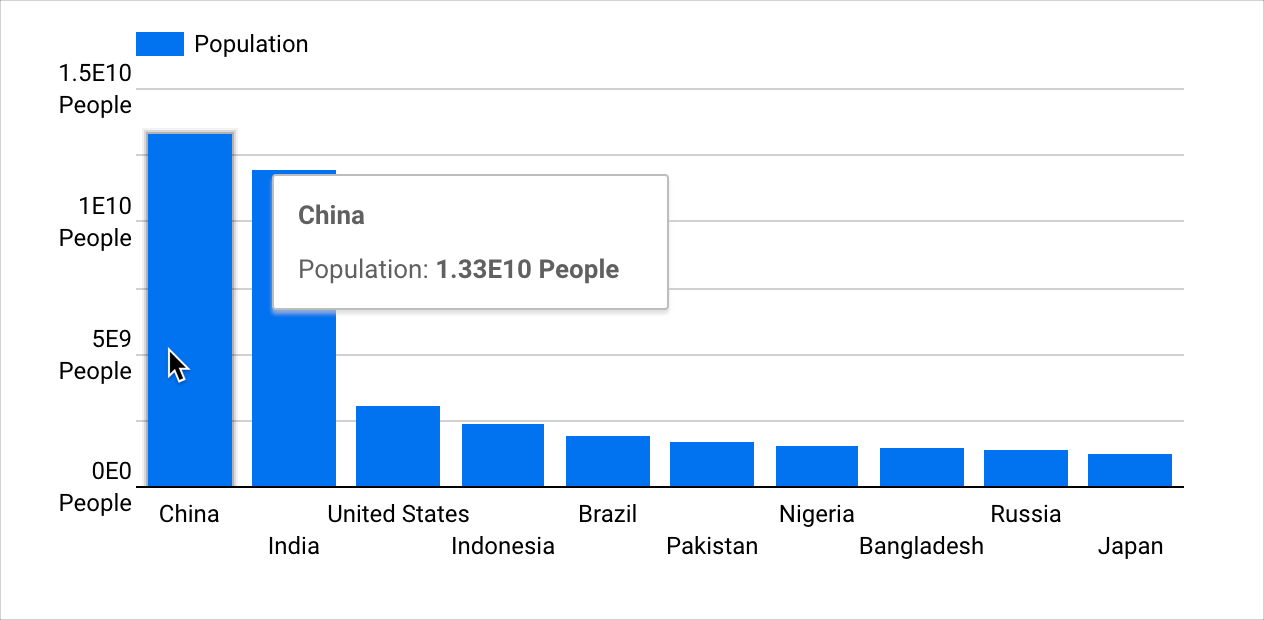
For example, you can choose to display large values as exponents and append text to the values. The following column chart displays Populationgrouped by Country.You can use custom formatting to display the large values as exponents with the text "People" appended to provide additional context to report viewers.
This page provides an overview of custom value formatting. It includes the following sections:
- Requirements
- Add or edit chart-specific custom value formatting
- Things to know about custom value formatting
- Related resources
Requirements
If you want to use custom value formatting for charts, these requirements must be met:
- The Field Editing in Reports setting must be enabled in the data source.
- You must have edit rights to a report.
- A dimension, metric, or calculated field must be a Numericor Date & Time data type .
Add or edit chart-specific custom value formatting
You can apply custom value formatting to dimensions, metrics, or calculated fields.
Add or edit chart-specific custom value formatting for dimensions and metrics
To add value formatting to dimension or metric values on a chart, follow these steps:
-
Create or edit your report .
-
Add a new chart or select an existing chart.
-
In the Setuptab of the Propertiespanel, click a field's data type icon to open the field's edit menu.
-
Choose a value format option in the Display Formatdrop-down menu. If you'd like to specify a custom format, choose Custom value formatto open the Custom number formatmenu.
-
Enter a custom value format. You can select a predefined format option or build your own using the options that are shown in the Custom date formator Custom number formatdialog.
A preview of the value format will be displayed under the Custom number formattext field.
-
Once you have selected or entered the custom format, click Apply.
-
Click outside of the field's edit menu and return to the chart Setupproperties.
Repeat steps 3-7 to edit a field's custom value formatting.
Add or edit chart-specific custom value formatting for calculated fields
To add custom value formatting to calculated field values on a chart, follow these steps:
-
Create or edit your report .
-
Add a new chart or select an existing chart.
-
In the Setuptab of the Propertiespanel, create a calculated field . Alternatively, edit an existing calculated field by hovering over the calculated field name and clicking field's data type icon.
If you create a new dimension type calculated field, click Applyafter you enter the desired expression. The calculated field editor will not detect the field type until you click Apply,
-
Choose a value format option in the Display Formatdrop-down menu. If you'd like to specify a custom format, choose Custom value formatto open the Custom number formatmenu.
-
Enter a custom value format. You can select a predefined format option or build your own using the options tht are shown in the Custom date formator Custom number formatdialog.
A preview of the value format will display under the Custom number formattext field.
-
Once you have selected or entered the custom format, click Apply.
-
Click outside of the calculated field's edit menu and return to the chart Setupproperties.
Repeat steps 3-7 to edit a calculated field's custom value formatting.
Custom date format strings
The following table lists common syntax characters that you can use to create a custom date or date and time format.
d
dd
E
EEEE
M
MM
MMM
MMMM
MMMMM
y
, yyy
, or yyyy
yy
h
hh
H
m
mm
s
ss
a
z
Example date formats
The following table provides examples of combined custom date formats:
| Format String | Description | Example Output |
|---|---|---|
yyyy-MM-dd
|
ISO Date format. | 2025-04-08 |
MM/dd/yyyy
|
Common US date format. | 04/08/2025 |
d MMMM yy
|
Day, full month name, 2-digit year. | 8 April 25 |
E, MMM dd, yyyy
|
Abbreviated day name, month, day number, year. | Tue, Apr 08, 2025 |
EEEE, MMMM d, y, h:mm:ss a
|
Full day name, full month name, day number, year, full time with AM/PM marker. | Tuesday, April 8, 2025, 3:05:09 PM |
Custom number format strings
The following table lists common syntax characters that you can use to create a custom number format:
| Character | Description | Example (for input 12345.670) |
|---|---|---|
| 0 | A digit in the number. An insignificant 0 will appear in the results. | |
| # | A digit in the number. An insignificant 0 will not appear in the results. | |
| . | Period. Formats numbers with a decimal separator. The Looker Studio locale determines which character is used as the decimal separator for all numeric values. |
|
| , | Comma. Formats numbers with a thousands separator. The Looker Studio locale determines which character is used as the thousands separator for all numeric values. |
|
| ; | Semicolon. Separates formats for positive and negative numbers. | |
| % | Formats numbers as percentages. | |
| E | Formats numbers as exponents. | |
| 'text' | Adds text before or after the number. Enter the text that you want to appear, with or without quotation marks. |
Example number formats
The following table provides examples of custom number formats:
| Example Input | Format String | Example Output |
|---|---|---|
|
1235
|
#,##0
|
1,235 |
|
1234.57
|
#,##0.00
|
1,234.57 |
|
123
|
#,##0'%'
|
123% |
|
123.46
|
#,##0.00'%'
|
123.46% |
|
1234.57
|
0.##E0
|
1.23E3 |
|
-1234
|
#,##0;(#,##0)
|
(1,234) |
|
-1234.57
|
#,##0.00;(#,##0.00)
|
(1,234.57) |
Things to know about custom value formatting
-
Custom formatting that is applied to chart values will be disabled when the Compact numberssetting is enabled. The Compact numberssetting is available when the Show data labelsoption is enabled on the Styletab of a chart's Propertiespanel.
Similarly, the Compact numberssetting will be disabled if custom formatting is applied to chart values.
-
Chart-specific value formatting will only exist in the chart in which it is applied. You can't directly reuse chart-specific value formatting.
However, you can copy a chart that uses custom value formatting. The copy will contain any custom value formatting defined in the original.
-
Looker Studio does not support conditional expressions in custom value formatting.
