TheTensorFlow Lite Model Maker librarysimplifies the process of adapting and converting a TensorFlow neural-network model to particular input data when deploying this model for on-device ML applications.
This notebook shows an end-to-end example that utilizes this Model Maker library to illustrate the adaption and conversion of a commonly-used image classification model to classify flowers on a mobile device.
Prerequisites
To run this example, we first need to install several required packages, including Model Maker package that in GitHubrepo.
Let's get some images to play with this simple end-to-end example. Hundreds of images is a good start for Model Maker while more data could achieve better accuracy.
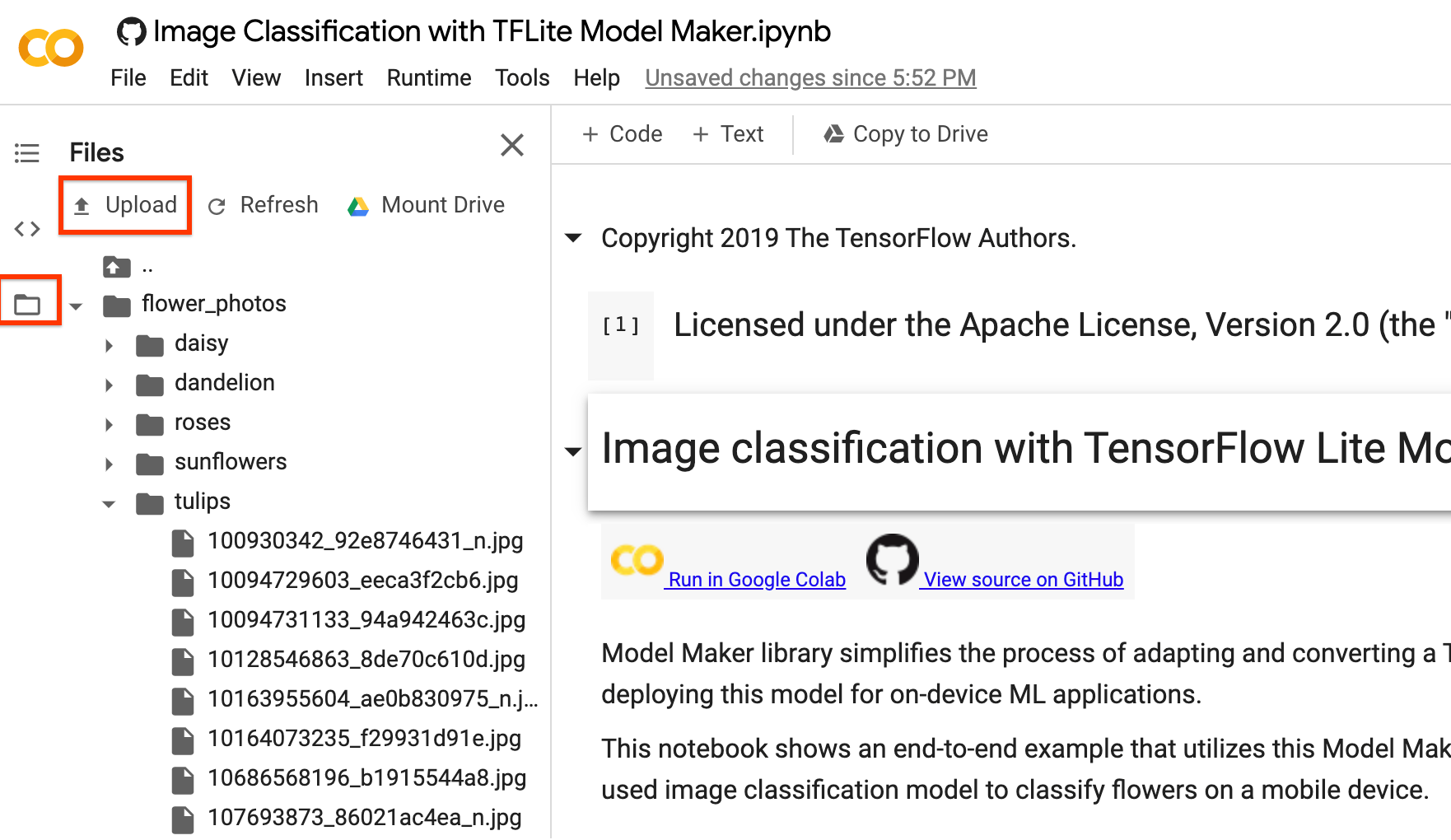
You could replaceimage_pathwith your own image folders. As for uploading data to colab, you could find the upload button in the left sidebar shown in the image below with the red rectangle. Just have a try to upload a zip file and unzip it. The root file path is the current path.
If you prefer not to upload your images to the cloud, you could try to run the library locally following theguidein GitHub.
Run the example
The example just consists of 4 lines of code as shown below, each of which representing one step of the overall process.
Step 1. Load input data specific to an on-device ML app. Split it into training data and testing data.
 data = DataLoader.from_folder(image_path)
train_data, test_data = data.split(0.9)
Step 2. Customize the TensorFlow model.
model = image_classifier.create(train_data)
Step 3. Evaluate the model.
loss, accuracy = model.evaluate(test_data)
Step 4. Export to TensorFlow Lite model.
Here, we export TensorFlow Lite model withmetadatawhich provides a standard for model descriptions. The label file is embedded in metadata. The default post-training quantization technique is full integer quantization for the image classification task.
You could download it in the left sidebar same as the uploading part for your own use.
model.export(export_dir='.')
After these simple 4 steps, we could further use TensorFlow Lite model file in on-device applications like inimage classificationreference app.
Detailed Process
Currently, we support several models such as EfficientNet-Lite* models, MobileNetV2, ResNet50 as pre-trained models for image classification. But it is very flexible to add new pre-trained models to this library with just a few lines of code.
The following walks through this end-to-end example step by step to show more detail.
Step 1: Load Input Data Specific to an On-device ML App
The flower dataset contains 3670 images belonging to 5 classes. Download the archive version of the dataset and untar it.
The dataset has the following directory structure:
As forfrom_folder()method, it could load data from the folder. It assumes that the image data of the same class are in the same subdirectory and the subfolder name is the class name. Currently, JPEG-encoded images and PNG-encoded images are supported.
data = DataLoader.from_folder(image_path)
Split it to training data (80%), validation data (10%, optional) and testing data (10%).
If the accuracy doesn't meet the app requirement, one could refer toAdvanced Usageto explore alternatives such as changing to a larger model, adjusting re-training parameters etc.
Step 4: Export to TensorFlow Lite Model
Convert the trained model to TensorFlow Lite model format withmetadataso that you can later use in an on-device ML application. The label file and the vocab file are embedded in metadata. The default TFLite filename ismodel.tflite.
In many on-device ML application, the model size is an important factor. Therefore, it is recommended that you apply quantize the model to make it smaller and potentially run faster.
The default post-training quantization technique is full integer quantization for the image classification task.
model.export(export_dir='.')
See the image classificationexamples guidefor more details about how to integrate the TensorFlow Lite model into mobile apps.
The allowed export formats can be one or a list of the following:
ExportFormat.TFLITE
ExportFormat.LABEL
ExportFormat.SAVED_MODEL
By default, it just exports TensorFlow Lite model with metadata. You can also selectively export different files. For instance, exporting only the label file as follows:
You can also evaluate the tflite model with theevaluate_tflitemethod.
model.evaluate_tflite('model.tflite', test_data)
Advanced Usage
Thecreatefunction is the critical part of this library. It uses transfer learning with a pretrained model similar to thetutorial.
Thecreatefunction contains the following steps:
Split the data into training, validation, testing data according to parametervalidation_ratioandtest_ratio. The default value ofvalidation_ratioandtest_ratioare0.1and0.1.
Download aImage Feature Vectoras the base model from TensorFlow Hub. The default pre-trained model is EfficientNet-Lite0.
Add a classifier head with a Dropout Layer withdropout_ratebetween head layer and pre-trained model. The defaultdropout_rateis the defaultdropout_ratevalue frommake_image_classifier_libby TensorFlow Hub.
Preprocess the raw input data. Currently, preprocessing steps including normalizing the value of each image pixel to model input scale and resizing it to model input size. EfficientNet-Lite0 have the input scale[0, 1]and the input image size[224, 224, 3].
Feed the data into the classifier model. By default, the training parameters such as training epochs, batch size, learning rate, momentum are the default values frommake_image_classifier_libby TensorFlow Hub. Only the classifier head is trained.
In this section, we describe several advanced topics, including switching to a different image classification model, changing the training hyperparameters etc.
Customize Post-training quantization on the TensorFLow Lite model
Post-training quantizationis a conversion technique that can reduce model size and inference latency, while also improving CPU and hardware accelerator inference speed, with a little degradation in model accuracy. Thus, it's widely used to optimize the model.
Model Maker library applies a default post-training quantization techique when exporting the model. If you want to customize post-training quantization, Model Maker supports multiple post-training quantization options usingQuantizationConfigas well. Let's take float16 quantization as an instance. First, define the quantization config.
config = QuantizationConfig.for_float16()
Then we export the TensorFlow Lite model with such configuration.
In Colab, you can download the model namedmodel_fp16.tflitefrom the left sidebar, same as the uploading part mentioned above.
Change the model
Change to the model that's supported in this library.
This library supports EfficientNet-Lite models, MobileNetV2, ResNet50 by now.EfficientNet-Liteare a family of image classification models that could achieve state-of-art accuracy and suitable for Edge devices. The default model is EfficientNet-Lite0.
We could switch model to MobileNetV2 by just setting parametermodel_specto the MobileNetV2 model specification increatemethod.
model = image_classifier.create(train_data, model_spec=model_spec.get('mobilenet_v2'), validation_data=validation_data)
Evaluate the newly retrained MobileNetV2 model to see the accuracy and loss in testing data.
loss, accuracy = model.evaluate(test_data)
Change the training hyperparameters
We could also change the training hyperparameters likeepochs,dropout_rateandbatch_sizethat could affect the model accuracy. The model parameters you can adjust are:
epochs: more epochs could achieve better accuracy until it converges but training for too many epochs may lead to overfitting.
dropout_rate: The rate for dropout, avoid overfitting. None by default.
batch_size: number of samples to use in one training step. None by default.
validation_data: Validation data. If None, skips validation process. None by default.
train_whole_model: If true, the Hub module is trained together with the classification layer on top. Otherwise, only train the top classification layer. None by default.
learning_rate: Base learning rate. None by default.
momentum: a Python float forwarded to the optimizer. Only used whenuse_hub_libraryis True. None by default.
shuffle: Boolean, whether the data should be shuffled. False by default.
use_augmentation: Boolean, use data augmentation for preprocessing. False by default.
use_hub_library: Boolean, usemake_image_classifier_libfrom tensorflow hub to retrain the model. This training pipeline could achieve better performance for complicated dataset with many categories. True by default.
warmup_steps: Number of warmup steps for warmup schedule on learning rate. If None, the default warmup_steps is used which is the total training steps in two epochs. Only used whenuse_hub_libraryis False. None by default.
model_dir: Optional, the location of the model checkpoint files. Only used whenuse_hub_libraryis False. None by default.
[[["Easy to understand","easyToUnderstand","thumb-up"],["Solved my problem","solvedMyProblem","thumb-up"],["Other","otherUp","thumb-up"]],[["Missing the information I need","missingTheInformationINeed","thumb-down"],["Too complicated / too many steps","tooComplicatedTooManySteps","thumb-down"],["Out of date","outOfDate","thumb-down"],["Samples / code issue","samplesCodeIssue","thumb-down"],["Other","otherDown","thumb-down"]],["Last updated 2026-05-28 UTC."],[],[]]