


This page describes how to configure the assistant's behavior, including setting additional LLM instructions, enabling Model Armor, and defining banned phrases.
-
In the Google Cloud console, go to the Gemini Enterprise page.
-
Click the name of the app that you want to configure.
-
Click Configurations.
-
In the Additional LLM system instructionssection, select Customize.
-
Enter the additional LLM system instructions.
For example:
Make the summary headings bold List the resources as an unordered list -
In the Enable Model Armorsection, follow the instructions to configure Model Armorand setup the Model Armor templates. For more information, see the Configure Model Armor page.
-
In the Banned phrasessection, click Add banned phraseto add a new phrase.
-
In the dialog, enter the banned phrase and choose the match type.
-
Simple string match: This is a substring match. For example, if Hellois a banned phrase, both Hello worldand Helloworldare rejected.
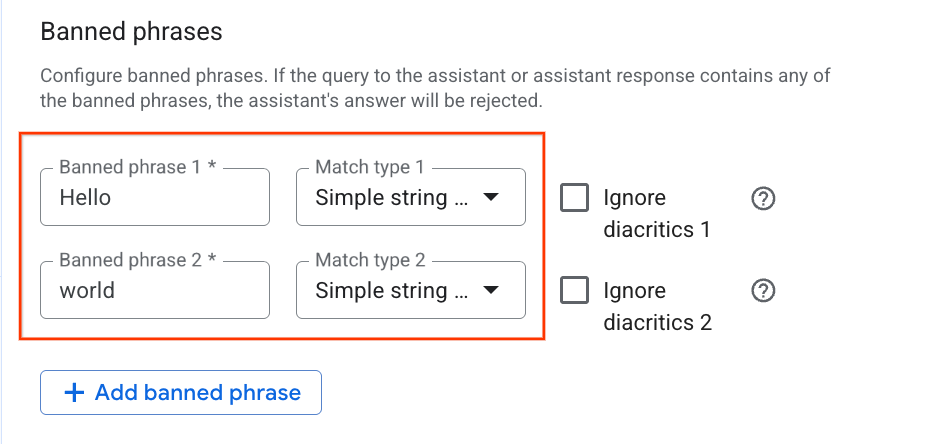
Enter the banned phrase and choose the Single string match type -
Word boundary string match: This blocks the phrase as a whole word. For example, if Hellois a banned phrase, Hello worldis rejected, but Helloworldis accepted.
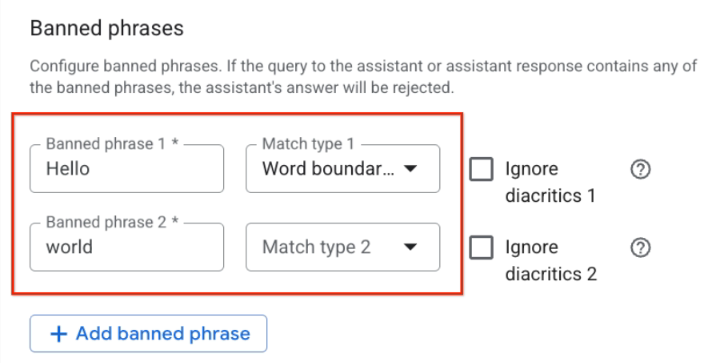
Enter the banned phrase and choose the Word boundary string match type
-
-
After entering the phrase and selecting the match type, click Save and publish.
