
This page explains how to ground Gemini responses using results from Google's search engine, which uses publicly-available web data. Also, Search Suggestions are explained, which are included in your responses.
Grounding with Google Search
If you want to connect your model with world knowledge, a wide possible range of topics, or up-to-date information on the Internet, then use Grounding with Google Search.
To learn more about model grounding in Vertex AI, see the Grounding overview .
Supported models
This section lists the models that support grounding with Search.
Supported languages
For a list of supported languages, see Languages .
Using Grounding with Google Search
Use the following instructions to ground a model with publicly available web data.
Considerations
-
To use Grounding with Google Search, you must enable Google Search Suggestions. For more information, see Use Google Search suggestions .
-
For ideal results, use a temperature of
1.0. To learn more about setting this configuration, see the Gemini API request body from the model reference. -
Grounding with Google Search has a limit of one million queries per day. If you require more queries, contact Google Cloud support for assistance.
Search results can be customized for a specific geographic location of the end user by using the latitude and longitude coordinates. For more information, see the Grounding API.
Console
To use Grounding with Google Search with the Vertex AI Studio, follow these steps:
- In the Google Cloud console, go to the Vertex AI Studio page.
- Click the Freeformtab.
- In the side panel, click the Ground model responsestoggle.
- Click Customizeand set Grounding with Google Search as the source.
- Enter your prompt in the text box and click Submit.
Your prompt responses now use Grounding with Google Search.
Python
Install
pip install --upgrade google-genai
To learn more, see the SDK reference documentation .
Set environment variables to use the Gen AI SDK with Vertex AI:
 # Replace the `GOOGLE_CLOUD_PROJECT` and `GOOGLE_CLOUD_LOCATION` values
 # with appropriate values for your project.
 export

 GOOGLE_CLOUD_PROJECT
 =
 GOOGLE_CLOUD_PROJECT
 export

 GOOGLE_CLOUD_LOCATION
 =
 global
 export

 GOOGLE_GENAI_USE_VERTEXAI
 =
True
Go
Learn how to install or update the Go .
To learn more, see the SDK reference documentation .
Set environment variables to use the Gen AI SDK with Vertex AI:
 # Replace the `GOOGLE_CLOUD_PROJECT` and `GOOGLE_CLOUD_LOCATION` values
 # with appropriate values for your project.
 export

 GOOGLE_CLOUD_PROJECT
 =
 GOOGLE_CLOUD_PROJECT
 export

 GOOGLE_CLOUD_LOCATION
 =
 global
 export

 GOOGLE_GENAI_USE_VERTEXAI
 =
True
Java
Learn how to install or update the Java .
To learn more, see the SDK reference documentation .
Set environment variables to use the Gen AI SDK with Vertex AI:
 # Replace the `GOOGLE_CLOUD_PROJECT` and `GOOGLE_CLOUD_LOCATION` values
 # with appropriate values for your project.
 export

 GOOGLE_CLOUD_PROJECT
 =
 GOOGLE_CLOUD_PROJECT
 export

 GOOGLE_CLOUD_LOCATION
 =
 global
 export

 GOOGLE_GENAI_USE_VERTEXAI
 =
True
Node.js
Install
npm install @google/genai
To learn more, see the SDK reference documentation .
Set environment variables to use the Gen AI SDK with Vertex AI:
 # Replace the `GOOGLE_CLOUD_PROJECT` and `GOOGLE_CLOUD_LOCATION` values
 # with appropriate values for your project.
 export

 GOOGLE_CLOUD_PROJECT
 =
 GOOGLE_CLOUD_PROJECT
 export

 GOOGLE_CLOUD_LOCATION
 =
 global
 export

 GOOGLE_GENAI_USE_VERTEXAI
 =
True
REST
Before using any of the request data, make the following replacements:
- LOCATION : The region to process the request. To use the global endpoint , exclude the location from the endpoint name and configure the location of the resource to global.
- PROJECT_ID : Your project ID .
- MODEL_ID : The model ID of the multimodal model.
- TEXT : The text instructions to include in the prompt.
- EXCLUDE_DOMAINS : Optional: List of domains that aren't to be used for grounding.
- LATITUDE
: Optional: The latitude of the end user's location. For example, a latitude of
37.7749represents San Francisco. You can obtain latitude and longitude coordinates using services like Google Maps or other geocoding tools. - LONGITUDE
: Optional: The longitude of the end user's location. For example, a longitude of
-122.4194represents San Francisco.
HTTP method and URL:
POST https:// LOCATION
-aiplatform.googleapis.com/v1/projects/ PROJECT_ID
/locations/ LOCATION
/publishers/google/models/ MODEL_ID
:generateContent
Request JSON body:
{
  "contents": [{
    "role": "user",
    "parts": [{
      "text": " TEXT
"
    }]
  }],
  "tools": [{
    "googleSearch": {
      "exclude_domains": [ "domain.com", "domain2.com" ]
    }
  }],
  "toolConfig": {
    "retrievalConfig": {
      "latLng": {
        "latitude": LATITUDE
,
        "longitude": LONGITUDE
}
    }
  },
  "model": "projects/ PROJECT_ID
/locations/ LOCATION
/publishers/google/models/ MODEL_ID
"
}
To send your request, expand one of these options:
You should receive a JSON response similar to the following:
{
"candidates": [
{
"content": {
"role": "model",
"parts": [
{
"text": "The weather in Chicago this weekend, will be partly cloudy. The temperature will be between 49°F (9°C) and 55°F (13°C) on Saturday and between 51°F (11°C) and 56°F (13°C) on Sunday. There is a slight chance of rain on both days.\n"
}
]
},
"finishReason": "STOP",
"groundingMetadata": {
"webSearchQueries": [
"weather in Chicago this weekend"
],
"searchEntryPoint": {
"renderedContent": "..."
},
"groundingChunks": [
{
"web": {
"uri": "https://www.google.com/search?q=weather+in+Chicago,+IL",
"title": "Weather information for locality: Chicago, administrative_area: IL",
"domain": "google.com"
}
},
{
"web": {
"uri": "...",
"title": "weatherbug.com",
"domain": "weatherbug.com"
}
}
],
"groundingSupports": [
{
"segment": {
"startIndex": 85,
"endIndex": 214,
"text": "The temperature will be between 49°F (9°C) and 55°F (13°C) on Saturday and between 51°F (11°C) and 56°F (13°C) on Sunday."
},
"groundingChunkIndices": [
0
],
"confidenceScores": [
0.8662828
]
},
{
"segment": {
"startIndex": 215,
"endIndex": 261,
"text": "There is a slight chance of rain on both days."
},
"groundingChunkIndices": [
1,
0
],
"confidenceScores": [
0.62836814,
0.6488607
]
}
],
"retrievalMetadata": {}
}
}
],
"usageMetadata": {
"promptTokenCount": 10,
"candidatesTokenCount": 98,
"totalTokenCount": 108,
"trafficType": "ON_DEMAND",
"promptTokensDetails": [
{
"modality": "TEXT",
"tokenCount": 10
}
],
"candidatesTokensDetails": [
{
"modality": "TEXT",
"tokenCount": 98
}
]
},
"modelVersion": "gemini-2.0-flash",
"createTime": "2025-05-19T14:42:55.000643Z",
"responseId": "b0MraIMFoqnf-Q-D66G4BQ"
}
Grounding with Google Image Search
Grounding with Google Image Search lets models use web images retrieved from Google Image Search as visual context when generating images. Google Image Search is a new search type within the existing Grounding with Google Search tool, and exists alongside standard Google Web Search. Grounding with Google Image Search is available in Preview only for the Gemini 3.1 Flash Image model .
API request configuration
To enable Google Image Search, configure the googleSearch
tool in your API
request and specify imageSearch
within the searchTypes
object. You can use
Google Image Search independently or with Google Web Search.
REST
Before using any of the request data, make the following replacements:
- LOCATION : The region to process the request. To use the global endpoint , exclude the location from the endpoint name and configure the location of the resource to global.
- PROJECT_ID : .
- MODEL_ID : The model ID of the multimodal model.
- SEARCH_TERM : A search term for an image.
HTTP method and URL:
POST https:// LOCATION -aiplatform.googleapis.com/v1/projects/ PROJECT_ID /locations/ LOCATION /publishers/google/models/ MODEL_ID :generateContent
Request JSON body:
{ "contents": [ { "role": "user", "parts": [ { "text": " SEARCH_TERM " } ] } ], "tools": [ { "googleSearch": { "searchTypes": { "imageSearch": {}, "webSearch": {} } } } ], "model": "projects/ PROJECT_ID /locations/ LOCATION /publishers/google/models/ MODEL_ID " }
To send your request, choose one of these options:
curl
Save the request body in a file named request.json
,
and execute the following command:
curl -X POST \
-H "Authorization: Bearer $(gcloud auth print-access-token)" \
-H "Content-Type: application/json; charset=utf-8" \
-d @request.json \
"https:// LOCATION
-aiplatform.googleapis.com/v1/projects/ PROJECT_ID
/locations/ LOCATION
/publishers/google/models/ MODEL_ID
:generateContent"
PowerShell
Save the request body in a file named request.json
,
and execute the following command:
$cred = gcloud auth print-access-token
$headers = @{ "Authorization" = "Bearer $cred" }

Invoke-WebRequest `
-Method POST `
-Headers $headers `
-ContentType: "application/json; charset=utf-8" `
-InFile request.json `
-Uri "https:// LOCATION
-aiplatform.googleapis.com/v1/projects/ PROJECT_ID
/locations/ LOCATION
/publishers/google/models/ MODEL_ID
:generateContent" | Select-Object -Expand Content
You should receive a successful status code (2xx) and an empty response.
Display requirements
When using Google Image Search with Grounding with Google Search, you must comply with the following conditions:
-
Source attribution: you must provide a link to the webpage that containing the source image (the "containing page, "not the image file itself) in a manner that the user will recognize as a link.
-
Direct navigation: if you also choose to display the source images, you must provide a direct, single-click path from the source images to its containing source webpage. Any other implementation that delays or abstracts the end users' access to the source webpages, including but not limited to any multi-click path or the use of an intermediate image viewer, is not permitted.
Response
For grounded responses using image search, the API provides clear attribution
and metadata to link its output to verified sources. The groundingMetadata
object includes the following fields:
-
imageSearchQueries: the specific query used by the model for visual context (also known as the "image search"). -
groundingChunks: contains the source information for retrieved results. For image sources, these are returned as redirect URLs using a new image chunk type. The chunk includes the following:-
url: the web page URL for attribution (also known as the "landing page"). -
image_url: the direct image URL.
-
-
groundingSupports: provides specific mappings that link the generated content to its relevant citation source in the chunks. -
searchEntryPoint: includes the Google Search chip that contains compliant HTML and CSS to render Google Search Suggestions.
Understand your response
If your model prompt successfully uses Grounding with Google Search from the Vertex AI Studio or from the API, then the responses include metadata with source links (web URLs). However, there are several reasons this metadata might not be provided, and the prompt response won't be grounded. These reasons include low source relevance or incomplete information within the model's response.
Inline citations
Inline citations use the structured grounding_metadata
returned by the API to
link specific segments of generated text to verifiable sources.
This capability supports all grounding methods including Search, Google Maps, and Vertex AI Search, providing the precise source details required to display accurate, interactive citations within your application.
  response
 =
 client
 .
 models
 .
 generate_content
 (
 model
 =
 "gemini-3.1-pro-preview"
 ,
 contents
 =
 "Where will the next FIFA World Cup be held?"
 ,
 config
 =
 types
 .
 GenerateContentConfig
 (
 tools
 =
 [
 types
 .
 Tool
 (
 google_search
 =
 types
 .
 GoogleSearch
 ())],
 ),
 )
 display
 (
 Markdown
 (
 response
 .
 text
 ))
 print
 (
 response
 .
 candidates
 [
 0
 ]
 .
 grounding_metadata
 .
 grounding_chunks
 )
 display
 (
 HTML
 (
 response
 .
 candidates
 [
 0
 ]
 .
 grounding_metadata
 .
 search_entry_point
 .
 rendered_content
 ))
Example output:
 …

Citations:
Wikipedia. "2026 FIFA World Cup." Retrieved February 11, 2026. (https://en.wikipedia.org/wiki/2026_FIFA_World_Cup)
US Soccer Players. "2026 FIFA World Cup FAQ — Dates, Hosts, Tickets, Teams & More." (https://ussoccerplayers.com/2026-fifa-world-cup-faq)
Holafly. "2026 World Cup host cities and countries: Full list of stadiums." (https://travel.holafly.com/esims/2026-world-cup-host-cities/)
…
Grounding support
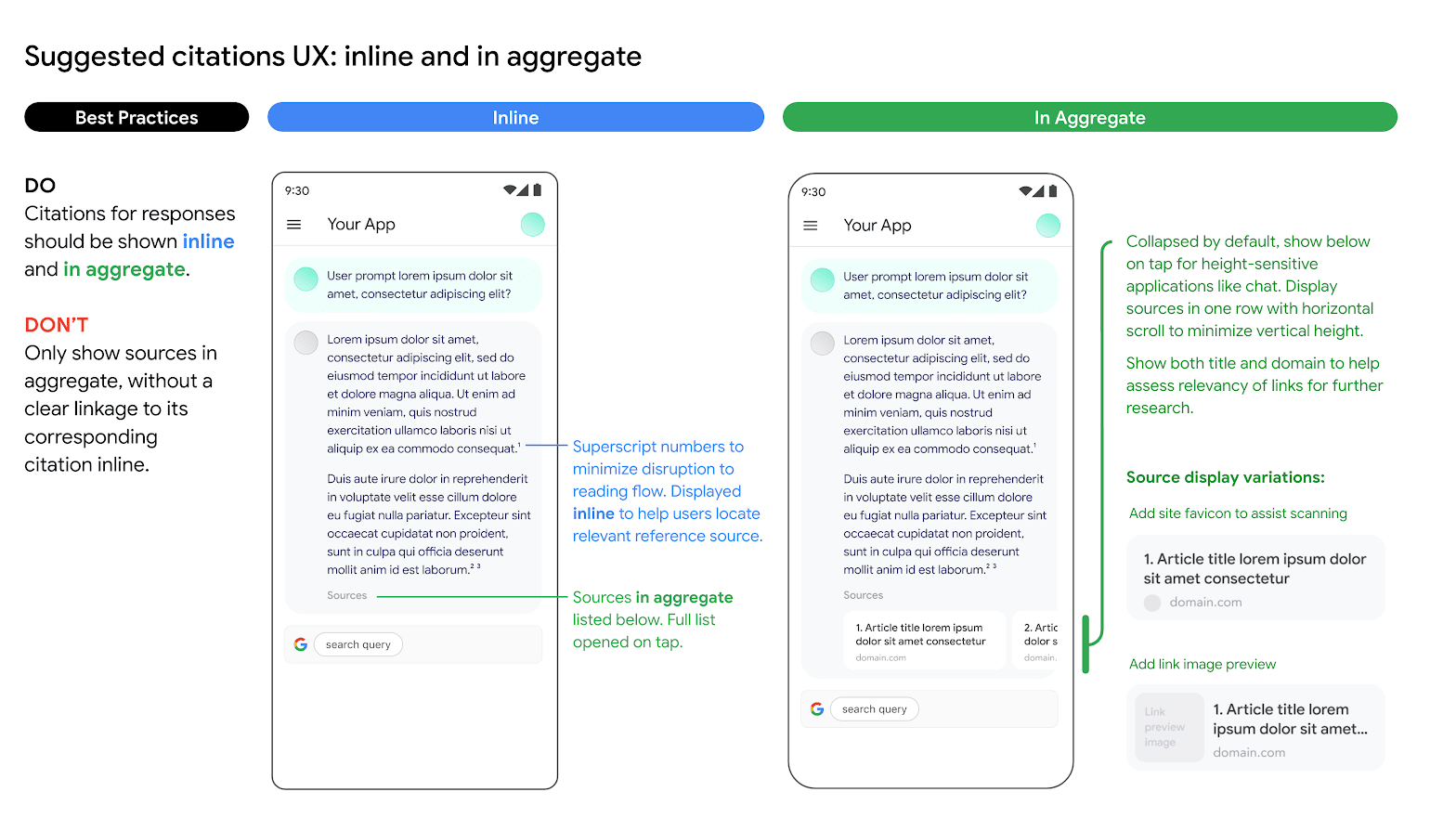
Displaying grounding support is required, because it aids you in validating responses from the publishers and adds avenues for further learning.
Grounding support for responses from web sources should be shown both inline and in aggregate. For example, see the following image as a suggestion on how to do this.
Use of alternative search engine options
When using Grounding with Google Search a Customer Application can:
- Offer alternative search engine options,
- Make other search engines the default option,
- Display their own or third-party search suggestions or search results as long as: any non-Google results must be displayed separately from Google's Grounded Results and Search Suggestions, and shown in a way that does not confuse users or suggest they are from Google.
Benefits
The following complex prompts and workflows that require planning, reasoning, and thinking can be done when you use Grounding with Google Search as a tool:
- You can ground to help ensure responses are based on the latest and most accurate information.
- You can retrieve artifacts from the web to do analysis.
- You can find relevant images, videos, or other media to assist in multimodal reasoning or task generation.
- You can perform coding, technical troubleshooting, and other specialized tasks.
- You can find region-specific information, or assist in translating content accurately.
- You can find relevant websites for browsing.
Use Google Search Suggestions
When you use Grounding with Google Search, and you receive Search Suggestions in your response, you must display the Search Suggestions in production and in your applications.
Specifically, you must display the search queries that are included in the grounded response's metadata. The response includes:
-
"content": LLM-generated response. -
"webSearchQueries": The queries to be used for Search Suggestions.
For example, in the following code snippet, Gemini responds to a Search grounded prompt, which is asking about a type of tropical plant.
  "predictions"
 :

 [

 {

 "content"
 :

 "Monstera is a type of vine that thrives in bright indirect light…"
 ,

 "groundingMetadata"
 :

 {

 "webSearchQueries"
 :

 [
 "What's a monstera?"
 ],

 }

 }
 ]
You can take this output, and display it by using Search Suggestions.
Requirements for Search Suggestions
The following is required for Search Suggestions:
- While complying with the display requirements , the Search Suggestion is displayed exactly as provided without any changes.
- When you interact with the Search Suggestion, you are taken directly to the Search results page (SRP).
- Include any screens or additional steps between the user's tap and the display of the SRP.
- Display any other search results or suggestions next to the Search Suggestion or the associated grounded LLM response.
Display requirements
The following are the display requirements:
- Display the Search Suggestion exactly as provided, and don't make any modifications to colors, fonts, or appearance. Ensure the Search Suggestion renders as specified in the following mocks such as light and dark mode:

- Whenever a grounded response is shown, its corresponding Search Suggestion should remain visible.
- For branding, you must strictly follow Google's guidelines for third-party use of Google brand features at the Welcome to our Brand Resource Center .
- When you use grounding with Search, Search Suggestion chips display. The field that contains the Search Suggestions chips must be the same width as the grounded response from the LLM.
Behavior on tap
When a user taps the chip, they are taken directly to a Search results page (SRP) for the search term displayed in the chip. The SRP can open either within your in-application browser or in a separate browser application. It's important to not minimize, remove, or obstruct the SRP's display in any way. The following animated mockup illustrates the tap-to-SRP interaction.

Code to implement a Search Suggestion
When you use the API to ground a response to search, the model response provides
compliant HTML and CSS styling in the renderedContent
field, which you
implement to display Search Suggestions in your
application.
Also, Search Suggestions were referred to as Search Entry Points before. Although you might encounter references to Search Entry Points in some API fields, both terms refer to the current Search Suggestions that you receive in your API response.
Billing changes with Gemini 3
When you are using Grounding with Google Search on Gemini 3 models, the billing occurs for each search query that is generated by Gemini and sent to Search. A single prompt might lead to one or more search queries.
Example
This example shows you a sample user prompt and search queries that might be charged.
- User prompt: Tell me about the life of Albert Einstein.
- Gemini might generate these search queries:
- Albert Einstein birth and early life education
- Albert Einstein theory of relativity
- Albert Einstein life in the US
In this example, these three search queries are charged.
What's next
- To learn more about grounding, see Grounding overview .
- To learn how to send chat prompt requests, see Multiturn chat .
- To learn about responsible AI best practices and Vertex AI's safety filters, see Safety best practices .
- Learn how to send chat prompt requests .
- Learn about responsible AI best practices and Vertex AI safety filters .
